



You built the bundle. The products look good together, the discount is live, and the offer is sitting on your product page. A week later, the orders list tells a different story: a few sales at best, and most of them single items.
A bundle that doesn't sell almost never has one big flaw. It usually has a small, specific leak somewhere between "shopper sees the offer" and "shopper pays for it," and the fix depends entirely on which leak you have. Raising the discount when the real problem is placement burns margin for nothing. Redesigning the widget when the discount silently fails at checkout wastes a week.
This guide gives you a way to find the leak first, then walks through the nine problems that account for most stalled bundles, with a symptom, a cause, and a fix for each. It also covers how long to wait before judging an offer and when the bundle itself is the wrong tool.
Key Takeaways
- Diagnose before you change anything. Compare four numbers for the bundle: impressions, add-to-carts, checkouts, and orders. The stage where the numbers collapse tells you which problems to check first.
- Low impressions point to placement and visibility. Plenty of views with no add-to-carts point to weak savings, unclear value, or too many decisions. Add-to-carts with no orders point to checkout friction, discount conflicts, or surprise costs.
- Baymard Institute's latest research found that extra costs such as shipping, tax, and fees were the top reason shoppers abandoned a checkout (40%). Another 12% said they couldn't see or calculate the total order cost up front.
- Shopify discounts don't combine automatically. If a bundle discount and another promotion can't stack, Shopify applies only the best one for the cart, which can make a bundle look broken.
- A bundle needs a real reason to exist. Products that don't belong together, a pool with too many choices, and savings a shopper can't see at a glance are the most common product-side causes.
- Give a fix a fair test. Change one thing at a time and judge it on enough orders to mean something, not on a quiet weekend.
Start With the Funnel: Where Do Shoppers Actually Drop Off?
"Not selling" describes an outcome, not a cause. Before you touch the offer, pull four numbers for the bundle over the last 30 days, or since launch if it's newer:
- Impressions: how many shoppers saw the bundle at all.
- Add-to-carts: how many added the bundle (or a bundle tier) to the cart.
- Checkouts started: how many carts containing the bundle reached checkout.
- Orders: how many paid for it.
Pumper's Analytics dashboard tracks impressions, add-to-carts, orders, revenue, and conversion rate per offer, so you can read the first, second, and fourth numbers without exporting anything. Shopify's own reports cover the checkout stage. If you track this in a spreadsheet, the structure matters more than the tool, and our guide to promotion metrics on Shopify explains how to read the offer funnel and what each ratio means.
Baymard Institute's average across 50 cart abandonment studies puts the abandonment rate at 70.22%, so roughly 7 in 10 online carts never convert (Baymard Institute, 2026). That figure is your reminder that some drop-off after the cart is normal. What you're looking for is a stage where your bundle falls off far harder than your regular products do.
Keep this table open while you read the nine problems. Each one is tagged with the funnel stage it affects.
The 9 Problems and How to Fix Them
Problem 1: Shoppers Never See the Bundle
Funnel stage: impressions.
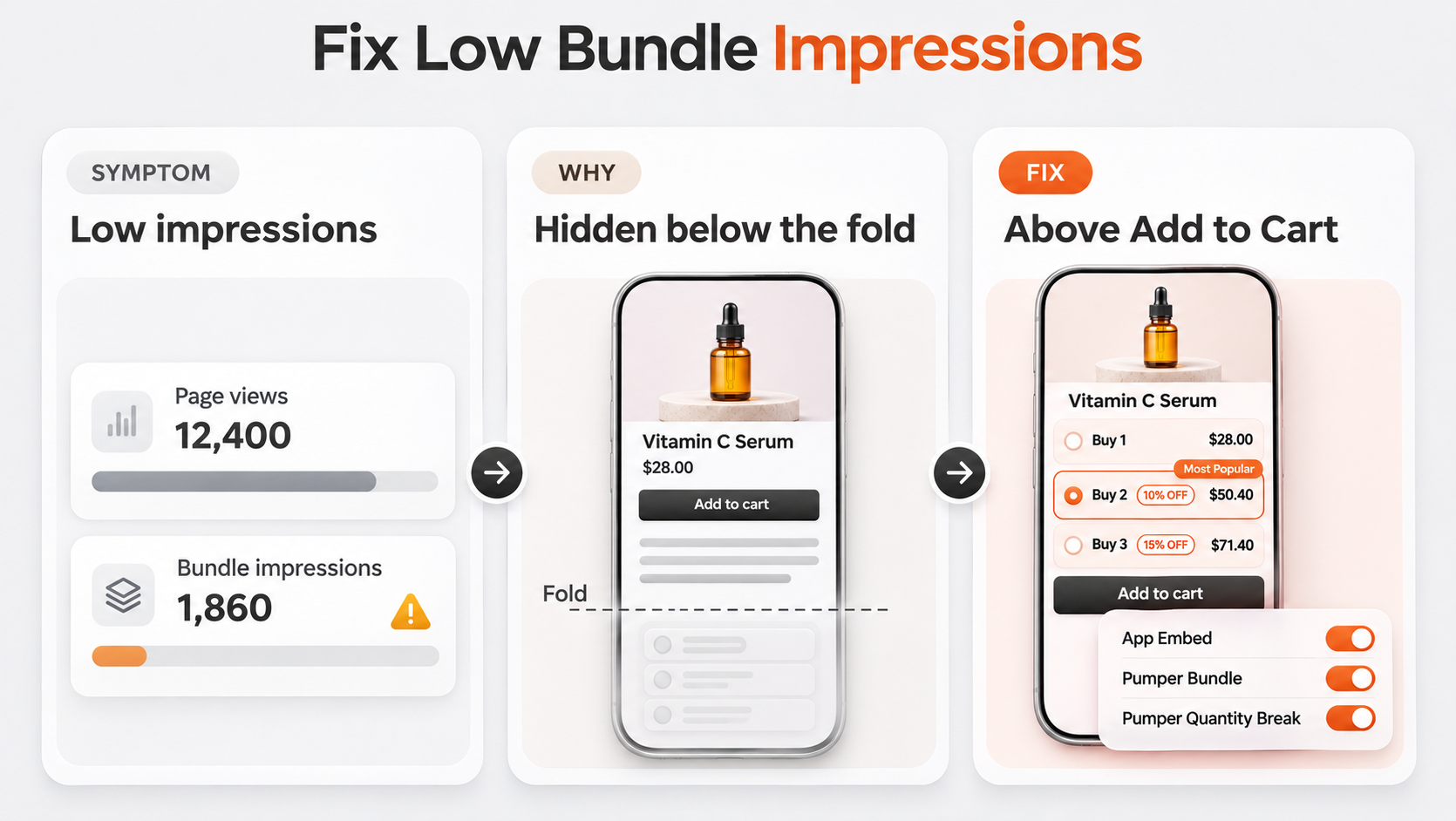
Symptom: impressions are a fraction of your product page views, or the bundle only appears on a collection page nobody visits.
Why it happens: a bundle placed below the fold, below the description, or on a separate "bundles" page competes with everything else on the page. Most shoppers decide on the product page, and if the offer isn't in their line of sight while they decide, it doesn't exist for them.
The fix: put the offer where the buying decision happens. Pumper's widgets render above the Add-to-Cart button through native Shopify Theme App Extensions, so the shopper sees the savings at the moment they're about to add one unit. If your theme places the button somewhere unusual, a custom CSS selector lets you position the widget above any element on the page. The same widget can also appear on the homepage and on landing pages, which helps when your traffic doesn't start on a product page.
Check it the way a shopper would. Open your best-selling product on a phone, load the page cold, and note whether the bundle is visible before you scroll. If it isn't, that's your answer.
If the app block was never activated in your theme, nothing renders at all. Pumper uses three Theme App Extensions (App Embed, Pumper Bundle, and Pumper Quantity Break), and all three need to be active. A bundle that shows in the dashboard preview but not on the live store is almost always one of these switched off, so check the theme editor's app embeds first.
Problem 2: The Products Don't Belong Together
Funnel stage: add-to-carts.
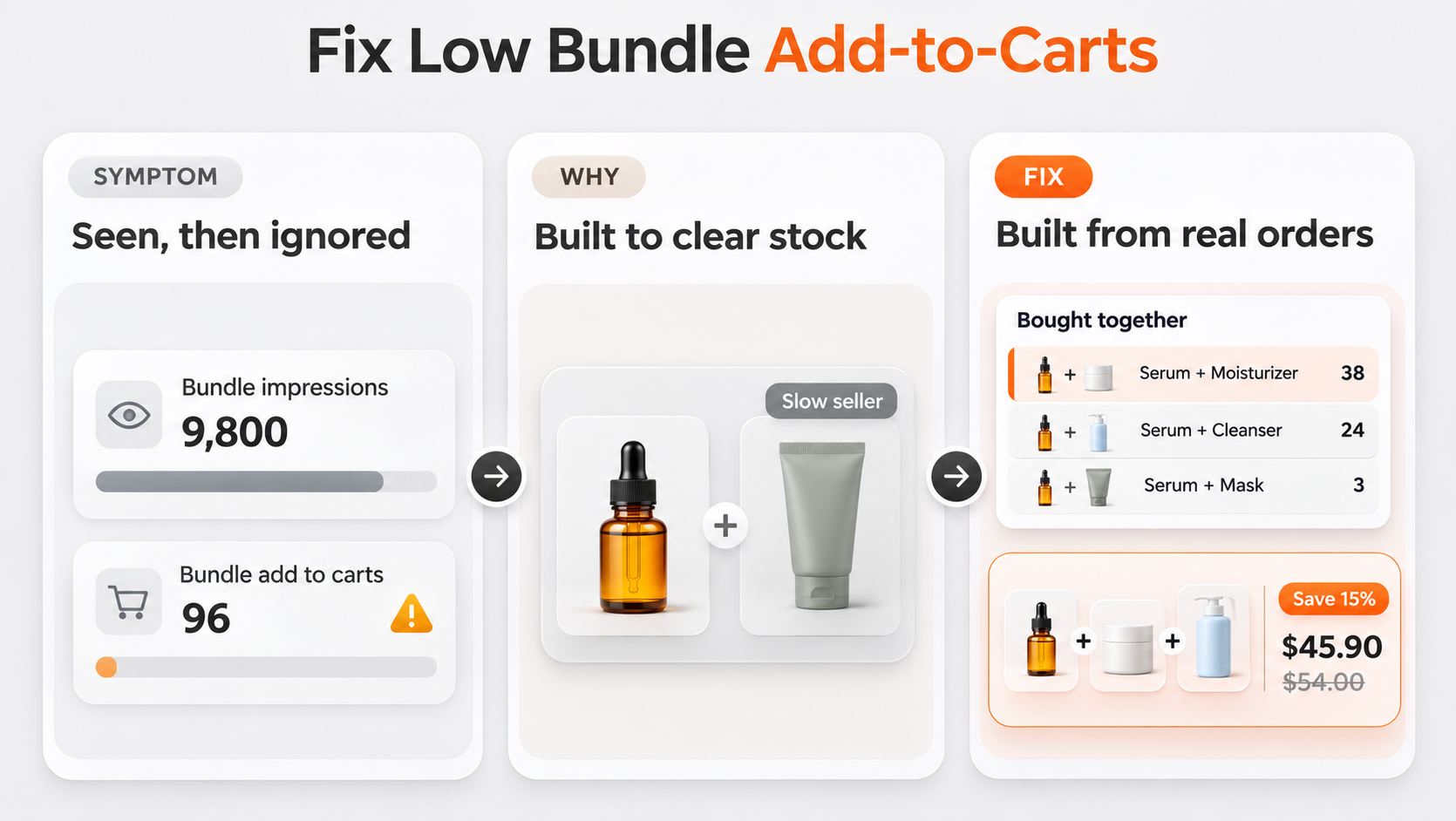
Symptom: shoppers view the offer and ignore it, and the few who buy it are mostly people who were already going to buy the main product.
Why it happens: merchants often build bundles from what they want to move, not from what customers actually combine. A bundle that pairs a best-seller with your slowest SKU looks like clearance to the shopper, and they can usually tell.
The fix: build from purchase behavior. Export your recent orders and count which products appear in the same order. The pairs that already show up together are your strongest bundle candidates, because the shopper has already told you the combination makes sense. Our guide to frequently bought together on Shopify walks through finding those pairs and deciding whether to show them as a suggestion or a priced bundle.
A good bundle also answers a use question: what goes with this, what comes before it, what would the customer otherwise forget to buy? If you can't finish that sentence for a bundle, it's probably the wrong one.
Pumper's Product Bundles lets you combine up to three different products into one discounted combo. That limit works in your favor here, because it pushes you toward a tight, logical set instead of a grab bag. For the strategy behind pairing products, Pumper's guide to Shopify product bundling strategies covers the formats and when each one fits.
Build a bundle shoppers already wantCombine up to three complementary products into one priced combo, shown above Add to Cart on the page where the decision happens.
|
Problem 3: The Savings Are Invisible or Too Small to Notice
Funnel stage: add-to-carts.
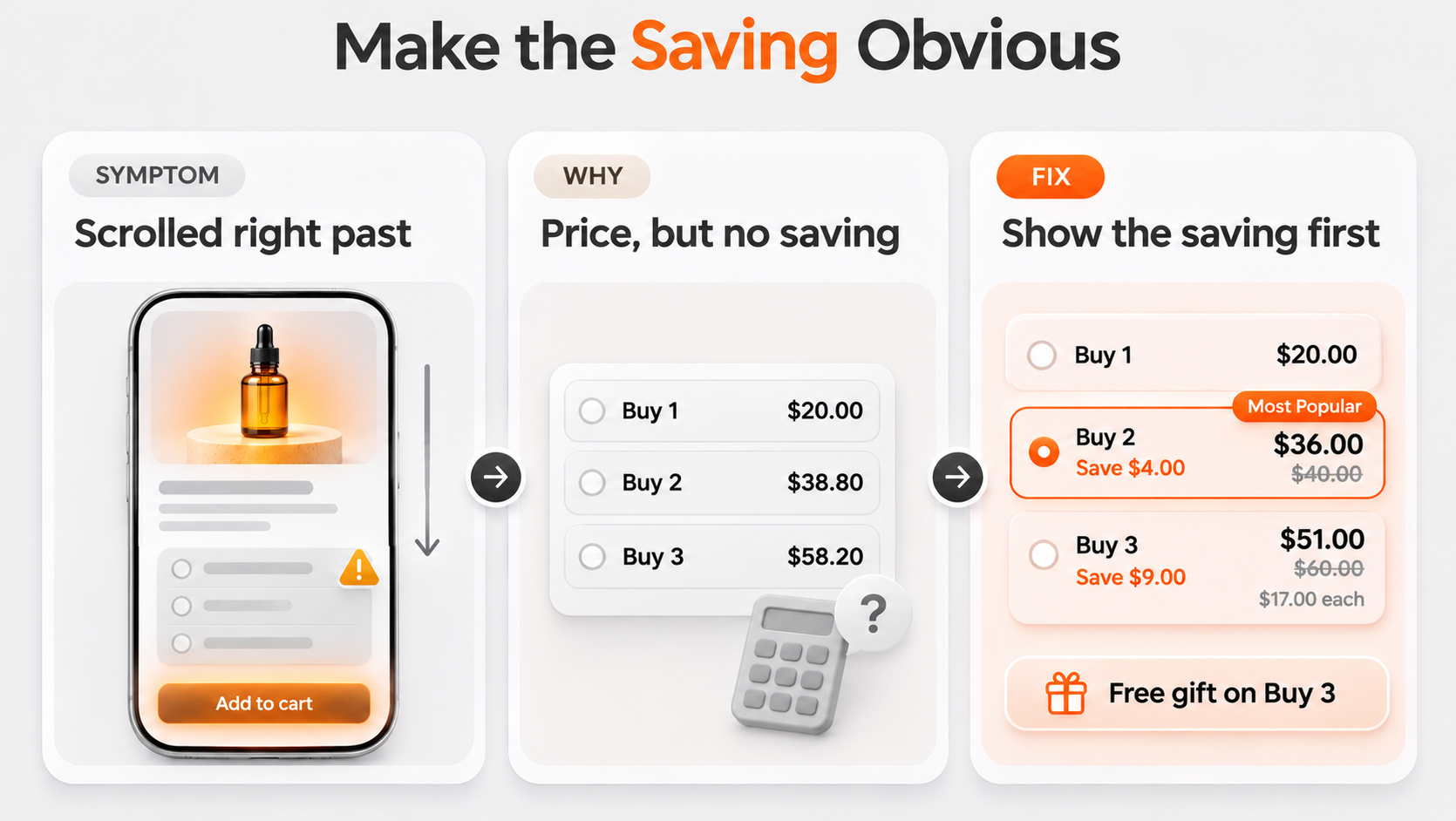
Symptom: plenty of views, almost no one takes the bundle, and heatmaps or session recordings show shoppers scrolling past it.
Why it happens: a shopper shouldn't have to subtract to find out they're saving money. If the bundle shows a price but no comparison, no "you save" amount, and no highlighted tier, the offer asks the shopper to do math they won't do. A 3% discount on a $20 product, which is 60 cents, also gives them no reason to change their behavior.
The fix: make the saving obvious first, then consider making it bigger. Show the original price next to the bundle price, state the savings in dollars when the price is under about $100, and mark the tier you most want chosen with a badge. Pumper supports compare-at pricing, per-unit plus total price display, and dynamic variables such as {DiscountAmountTotal}, {DiscountedTotalPrice} and {Quantity} in the widget copy. The full playbook is in our guide how to display bundle savings.
On depth, price from your margin, not from a round number. Work out the landed cost of every product in the bundle, then pick the deepest discount you can afford, not the deepest that looks good. Our quantity break pricing guide shows how to build a ladder from marginal cost. Skipping that step is the first of the margin errors in our post on promotion mistakes that cut into profit margins.
If the margin truly can't support a meaningful discount, add value that costs you less than a price cut. A free gift or free shipping unlock on the higher tier often costs less than the equivalent discount. Pumper supports free gifts, progressive gifts on larger tiers, and free shipping as add-ons.
Problem 4: Too Many Choices Stall the Decision
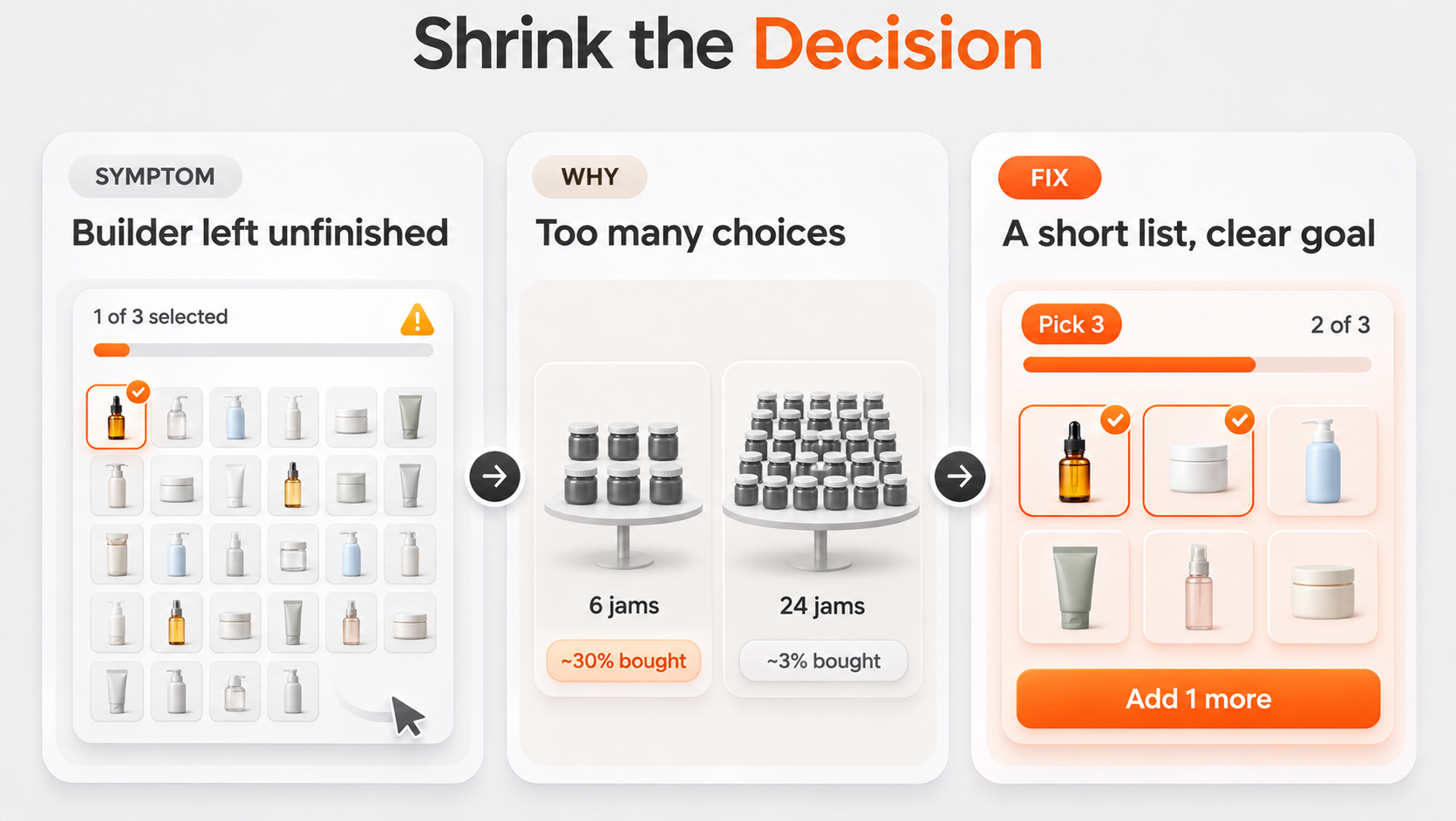
Funnel stage: add-to-carts.
Symptom: shoppers open a mix-and-match builder and don't finish, or they hover on a bundle with several variants and leave.
Why it happens: every extra decision costs attention. In a well-known field study, psychologists Sheena Iyengar and Mark Lepper set up tasting tables in a grocery store with either 6 or 24 jams. The larger display drew more stoppers, but about 30% of people who saw the 6-jam table bought, against about 3% of those who saw 24 (Iyengar and Lepper, Journal of Personality and Social Psychology, 2000). Later research found the effect varies by context, so treat it as a caution, not a law, but a bloated pool is still a common cause of stalled builders.
The fix: shrink the decision. Cut the product pool to roughly 6 to 10 items that you'd happily recommend, make the required pick count obvious ("Pick 3"), and show progress as the shopper selects. If you're running a fixed bundle with many variants, preselect the most popular variant for each item so the shopper can accept the default with one click.
For a deeper walk-through of curating a pool, see Pumper's guide to mix and match bundles. If the builder format still underperforms, it's worth asking whether a fixed bundle or a quantity break would suit your product better. Pure versus mixed bundling explains the trade-off.
Problem 5: The Discount Breaks, Stacks, or Disappears at Checkout
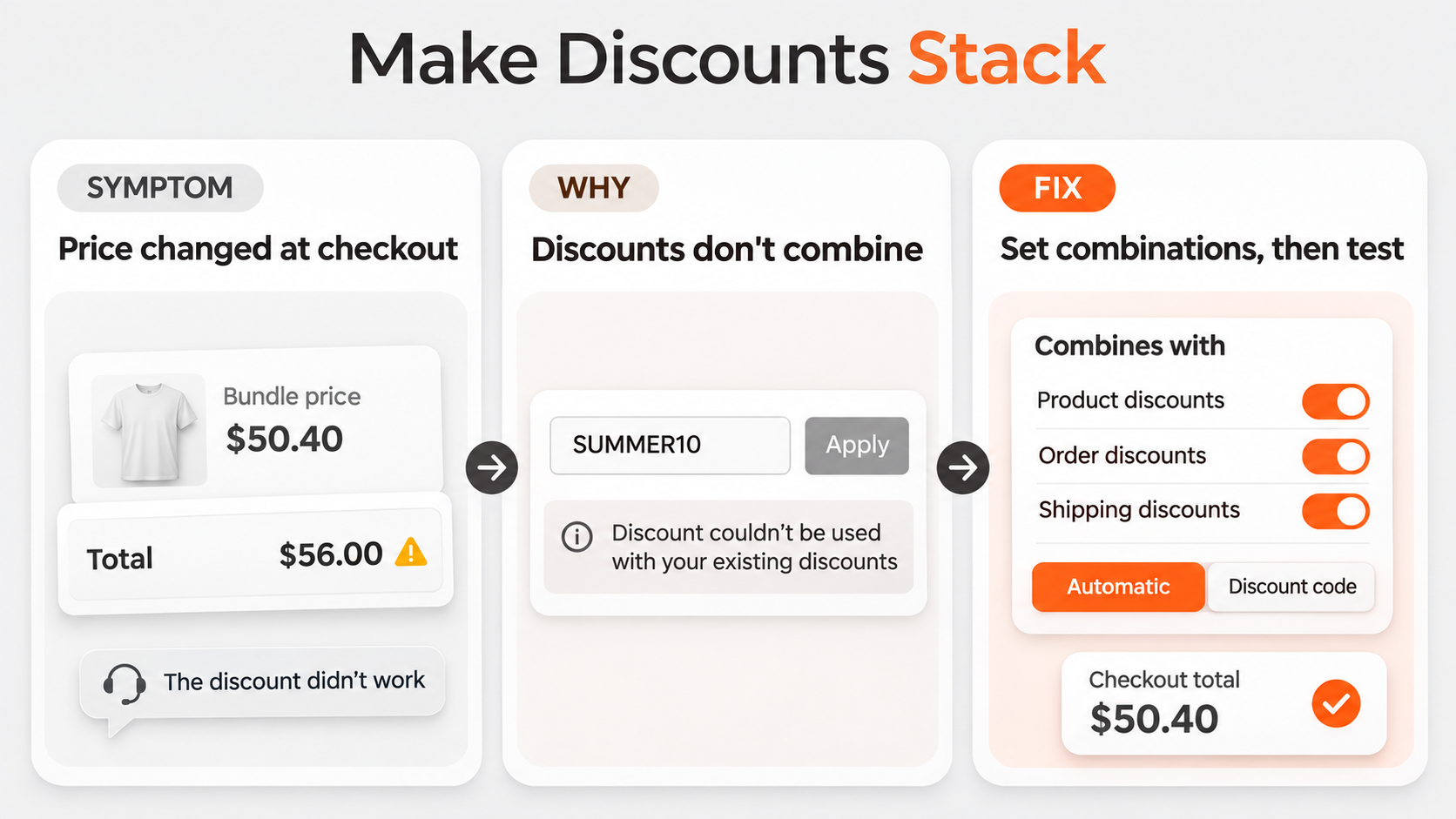
Funnel stage: add-to-cart to checkout, and checkout to order.
Symptom: shoppers add the bundle, then the price changes in the cart or at checkout, or support tickets mention "the discount didn't work."
Why it happens: Shopify doesn't combine discounts on its own. Per Shopify's Help Center, each discount has its own Combinations setting, and when two discounts can't combine, Shopify applies the best one for the cart. A shopper who then enters a code that conflicts sees the message "Discount couldn't be used with your existing discounts" (Shopify Help Center, 2026). The same page notes a cap of 25 active automatic discounts, including app-based ones, and that an app's discount can only combine if its developer has built in support for combinations.
So a bundle that looked right in the editor can quietly lose to a sitewide 10% code, or fail to stack with a free shipping discount you forgot was running.
The fix: test the real shopper path, with every active promotion switched on. Add the bundle to the cart, apply each live code, and check the final price at checkout for every combination you intend to allow.
Pumper has three separate Combination Discounts toggles that control whether its discounts stack with Shopify’s Product, Order, and Shipping discounts. Pumper applies its discounts automatically at checkout, so shoppers never need to enter a code. If you're not sure which mode suits you, the guide to Shopify automatic discounts explains how automatic discounts behave and how to troubleshoot the common failures.
Also check your cart. If you use a cart drawer app, confirm it displays bundle pricing correctly. Pumper lists compatibility with cart drawers such as UpCart and Opus Cart, but a theme-level customization can still cause a mismatch worth checking on your own store.
Problem 6: Variants and Stock Add Friction
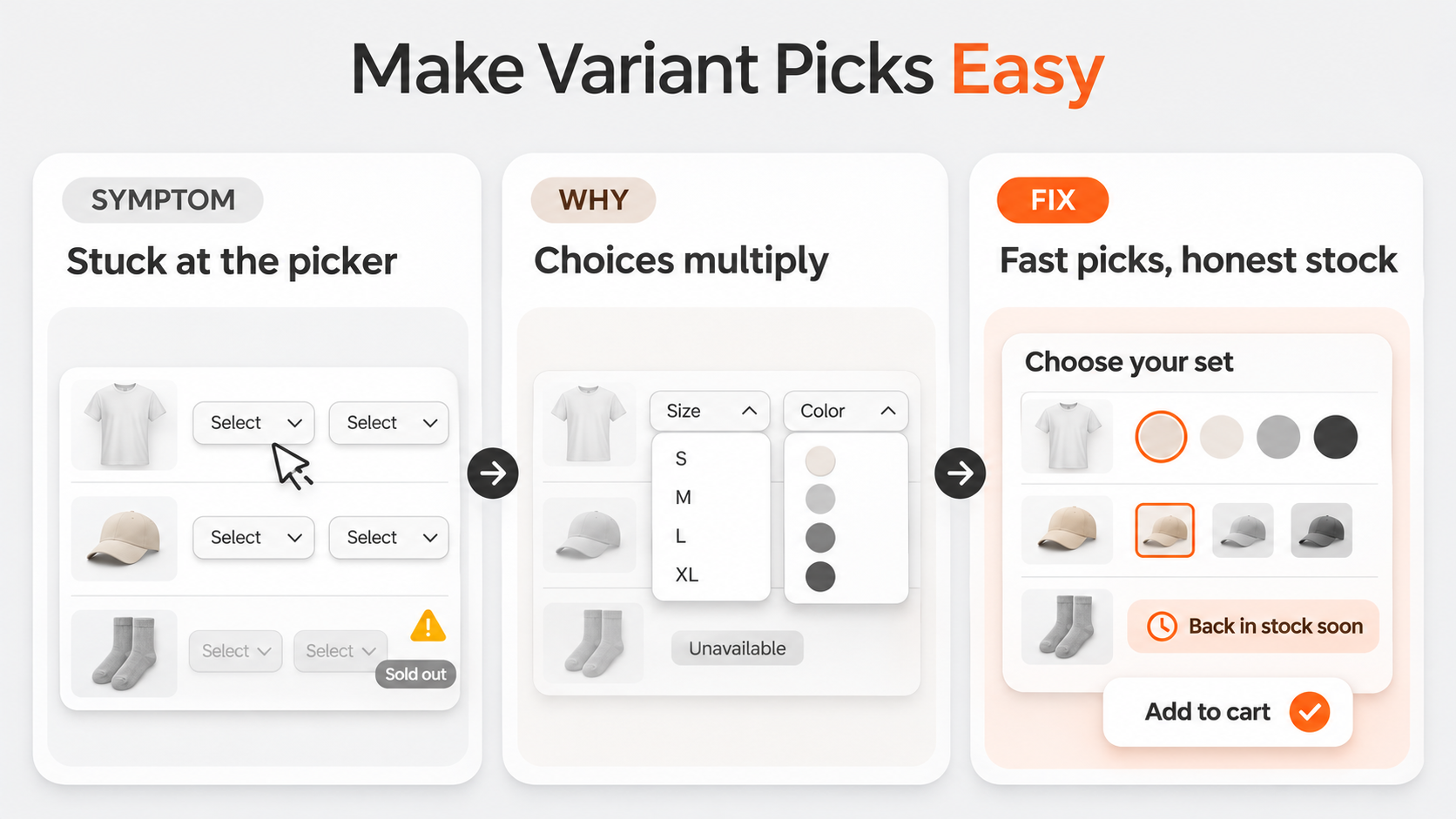
Funnel stage: add-to-carts.
Symptom: shoppers click the bundle, then stop at a variant picker, or they find that one item in the bundle is out of stock.
Why it happens: a bundle with several components multiplies variant choices. If each item needs a size and a color and the picker is confusing, or if one component is out of stock and the whole bundle becomes unavailable without explanation, the shopper leaves.
The fix: make selection fast and make stock honest. Use swatches or images for variants where it helps, preselect the most common option, and write clear out-of-stock text so the shopper knows whether to wait, switch, or choose another tier. Pumper supports different variants per item, color and image swatches, predefined variants, showing or hiding out-of-stock variants, custom out-of-stock text, and a sold-out overlay on a tier.
Look at inventory too. If one component sells out faster than the rest, either restock it, swap it in the bundle, or make that component a variant choice so the bundle stays available.
Problem 7: The Page Is Slow, Broken on Mobile, or Fighting Your Theme
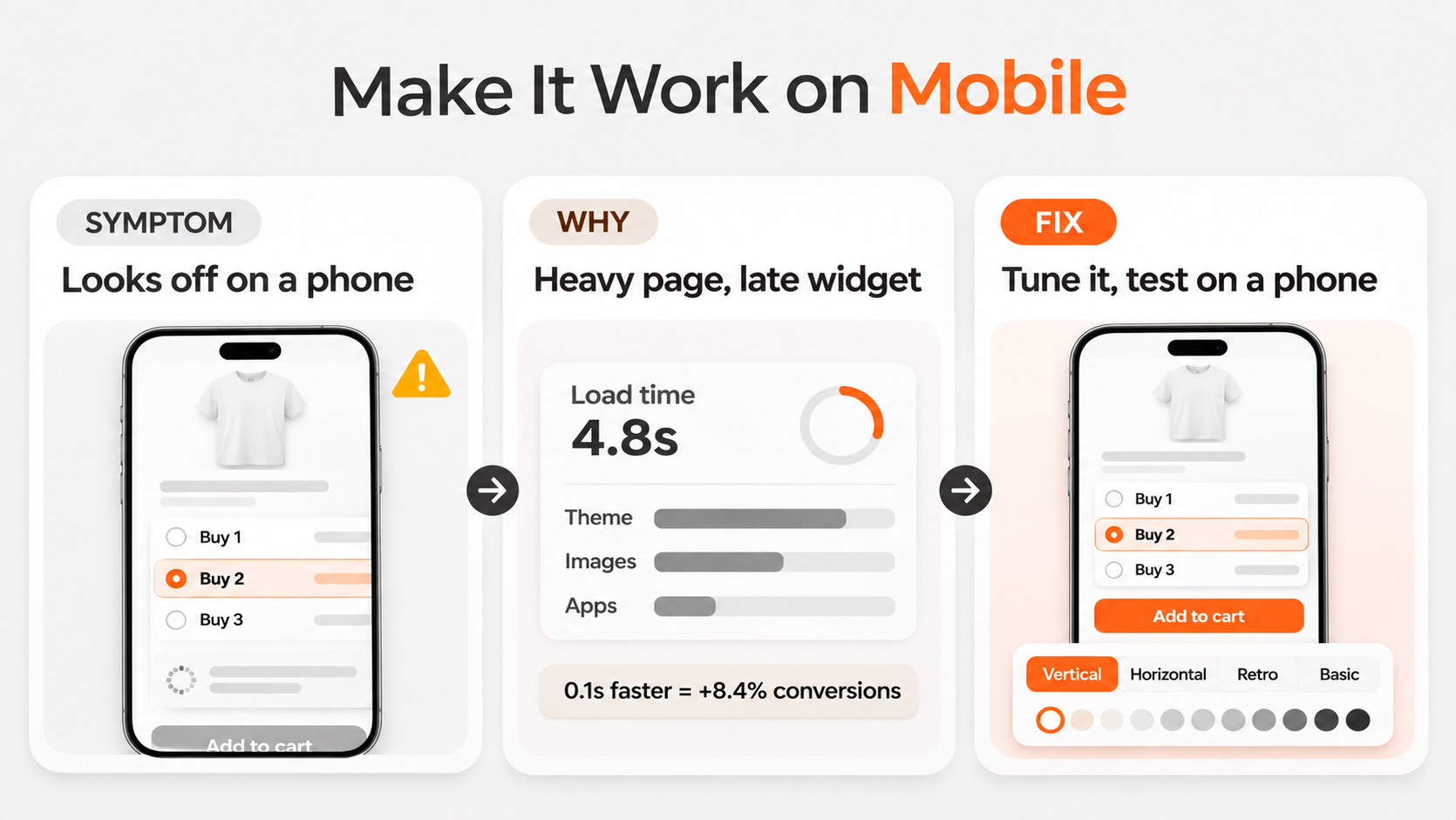
Funnel stage: impressions and add-to-carts.
Symptom: the bundle works on your laptop but looks off on a phone, loads late, or clashes with the theme's styling.
Why it happens: page speed and mobile layout affect every offer on the page. A study commissioned by Google and run by 55 and Deloitte tracked retail sites over 30 days at the end of 2019. It found that a 0.1-second improvement in site speed lifted retail conversion rates by 8.4% and spending by 9.2% (Deloitte and 55, "Milliseconds Make Millions"). A heavy theme, large unoptimized images, or several apps competing for the same space can drag the page down and push a late-loading widget out of view.
The fix: test on real devices. Load the product page on a mid-range phone on mobile data, and check that the widget appears quickly, that tiers aren't cut off, and that the Add-to-Cart button stays reachable. Compress bundle images, remove widgets you no longer use, and keep your theme current.
If styling clashes, use the layout and color options before reaching for code. Pumper offers two main layouts (Vertical and Horizontal) and 12 color themes. It also has controls for colors, borders, corner roundness, spacing, image size, and fonts, and it works with page builders such as GemPages and PageFly. The widget renders responsively on all devices without a separate mobile setup. A layout that looks wrong on a phone is therefore more often an image size or a custom CSS conflict than a missing mobile mode.
Problem 8: The Traffic Doesn't Match the Offer
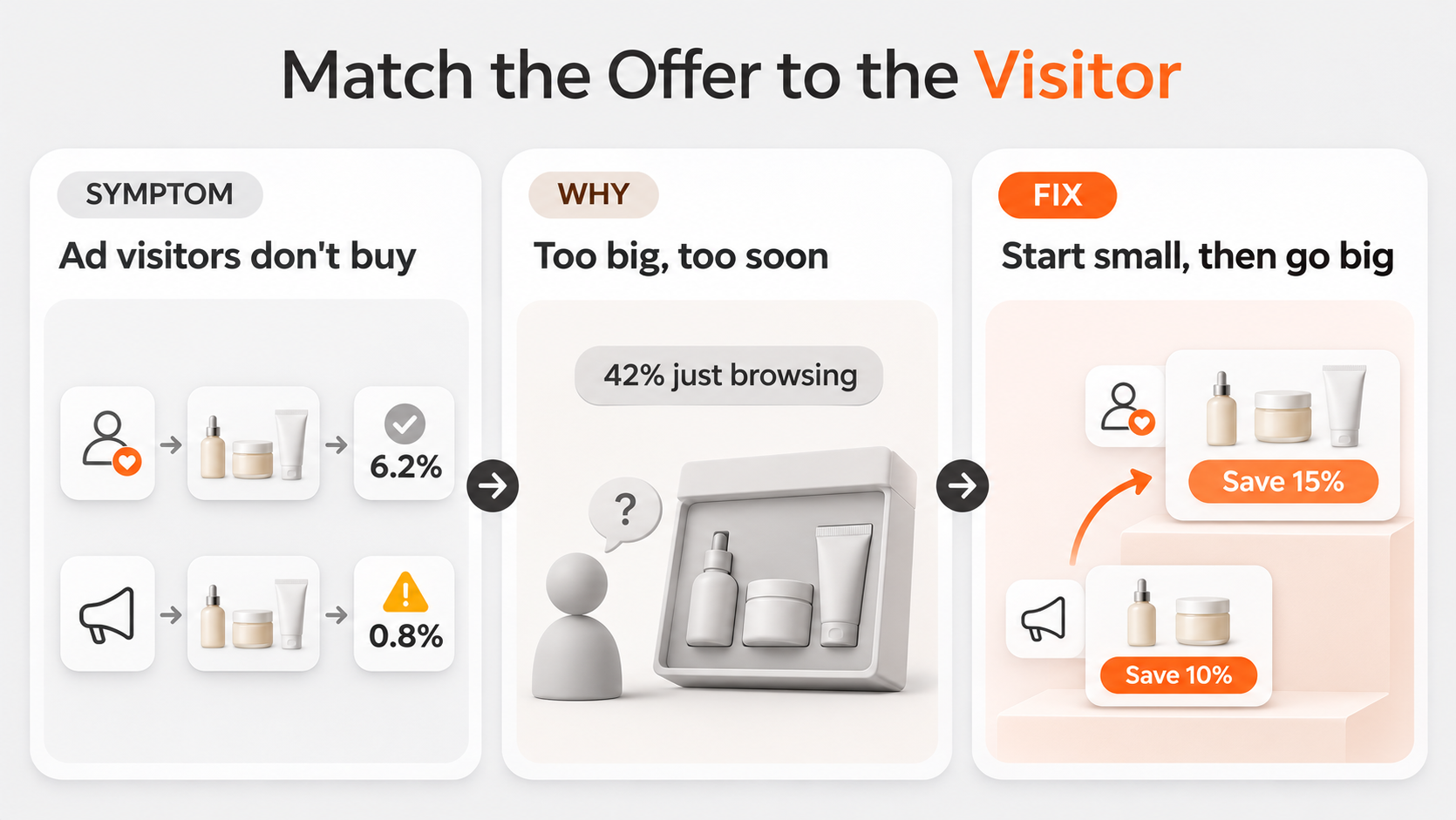
Funnel stage: impressions and add-to-carts.
Symptom: the bundle converts well for returning customers and email subscribers but poorly for paid social visitors, or the other way around.
Why it happens: different shoppers want different things. A first-time visitor from a cold ad often isn't ready to buy a three-product set from a brand they just met. Baymard's research found that 42% of shoppers who abandon a cart say they were "just browsing" or not ready to buy. A returning customer who already trusts you is far more likely to take the larger bundle.
The fix: match the offer to the visitor. For cold traffic, lead with a smaller, easier first purchase, such as a two-item set or a low-commitment quantity tier, and keep the larger bundle for returning shoppers. For warm traffic, test the bigger bundle. Our guide on the psychology of Shopify promotions explains how to segment offers by new versus returning customers and by cart behavior.
Pumper's targeting lets you scope an offer to specific products, collections, or markets, and to run multiple offers on the same product, so you can show different offers where your traffic differs.
Problem 9: Surprise Costs and Trust Gaps Kill the Order
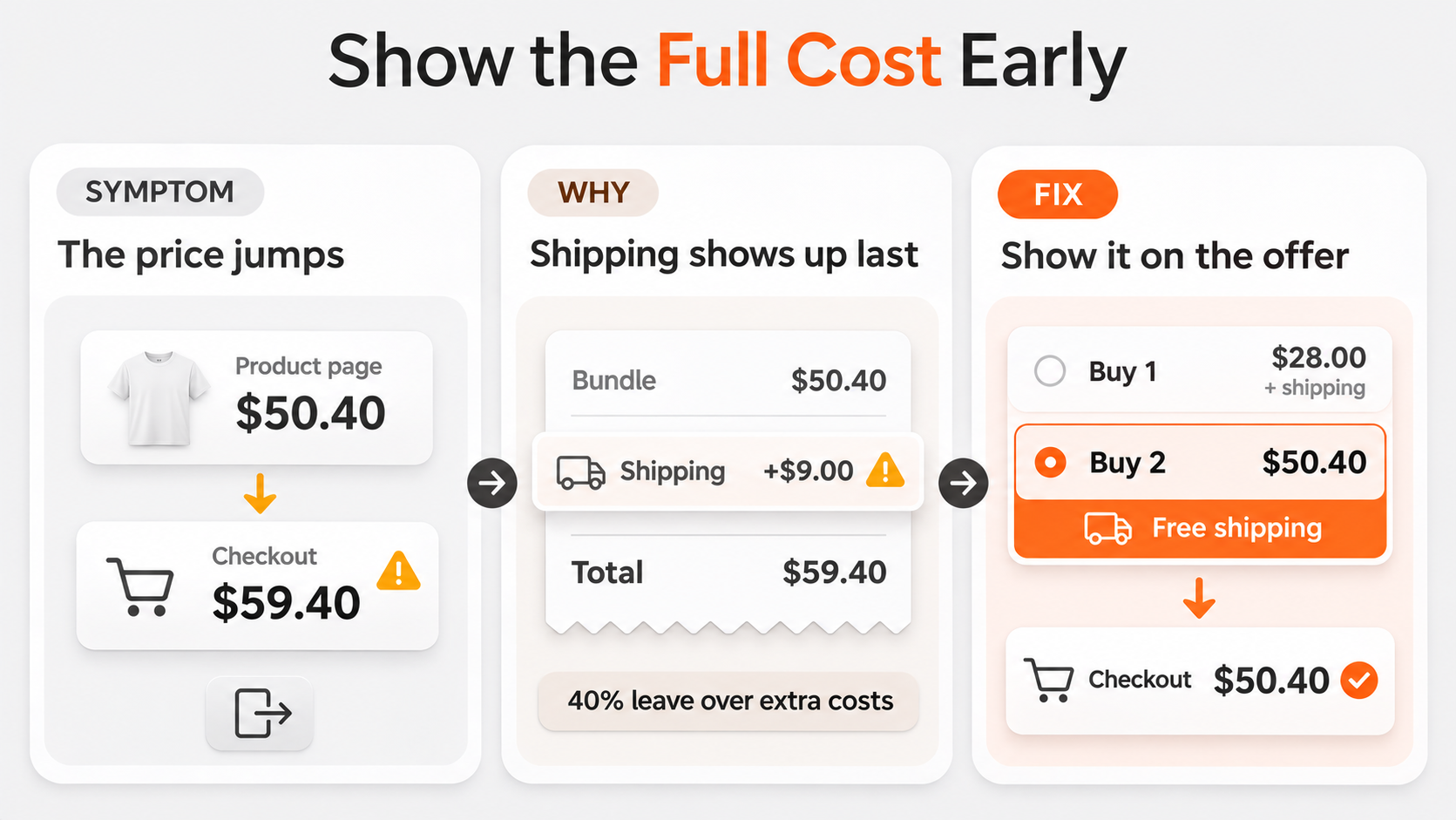
Funnel stage: checkout to order.
Symptom: bundle add-to-carts look healthy, but checkouts don't complete, especially when the cart value crosses a free-shipping threshold, or shipping gets added late.
Why it happens: a bundle can raise the cart value and expose shipping or tax costs the shopper hadn't considered. In Baymard's survey, 40% of shoppers who abandoned a checkout cited extra costs that were too high. Another 12% couldn't see or calculate the total order cost up front, and 19% didn't trust the site with their credit card information. A bundle discount doesn't help if the total jumps by the time the shopper reaches the last step.
The fix: show the full cost early and give shoppers a reason to trust the page. State your shipping terms near the offer, use a free-shipping threshold that the bundle reaches (or unlocks the free shipping on a tier directly), and show returns policy and security cues near the Add-to-Cart button. Pumper's free shipping add-on can unlock on a selected tier, and Buy Now with express checkout support (Shop Pay, Apple Pay, Google Pay, PayPal) reduces steps for shoppers who are ready.
Run a final check on any "was" price you display. The FTC's guides on former-price comparisons say a former price should be a genuine price the article was offered at on a regular basis for a reasonably substantial period. An inflated compare-at price may lift conversion briefly, but it creates legal and trust risk that outweighs any gain.
Find where your offers lose shoppersTrack impressions, add-to-carts, orders, and revenue for every offer in Pumper's per-offer analytics, so you can see exactly where a bundle stalls.
|
Which Problem Should You Fix First?
Fix in the order that costs least and teaches most. Problems 1, 5, and 7 are technical and take minutes to confirm, so check them first, because no amount of copywriting helps an offer that doesn't render or a discount that doesn't apply.
How Long Should You Wait Before Judging a Bundle?
A bundle needs enough shoppers to produce a meaningful result, and the number depends on your traffic. A store with 200 product page views a day can read a result in a week. A store with 200 views a week needs a month, and even then the numbers are rough.
A few rules keep you honest:
- Change one thing at a time. If you change the discount, the placement, and the copy together, you won't know which one worked.
- Cover full weeks. Weekday and weekend shoppers behave differently, so compare whole weeks against whole weeks.
- Set a decision rule before you start. For example: "If add-to-cart rate on the bundle doesn't beat the single-unit rate after two full weeks, we change the savings display."
- Watch margin, not just AOV. A bundle that lifts order value but sells at a loss isn't working. The guide to increasing average order value on Shopify covers how to check profit per order, not just revenue.
When the Bundle Itself Is the Wrong Offer
Sometimes the fix is a different mechanic. Three signs it's time to switch:
- Shoppers buy more of one product, not different products. A quantity break on your best-seller suits that behavior better than a mixed bundle. Our guide on buy more, save more strategies covers when to use tiers instead.
- Your products have no natural pairing. A BOGO or a free gift with purchase can lift order value without forcing a combination that doesn't exist. The comparison in BOGO 50% off versus BOGO free helps you pick the structure.
- The bundle is a one-time event. If the offer exists to clear stock or mark a moment, a limited-time frame may suit it better. See the limited-time offer strategies guide for how to build urgency that's real.
Pumper allows you to run volume discounts, bundles, BOGO, free gifts, and mix-and-match offers from one dashboard. You can test a different mechanic on the same product without installing another app.
Test a different offer type on the same productSwitch between quantity breaks, bundles, mix and match, and Buy X Get Y without leaving one dashboard, and compare results per offer.
|
Final Verdict
A bundle that doesn't sell is usually telling you something specific. Low impressions mean shoppers can't find it. Plenty of views with no add-to-carts mean the value isn't clear or the choice is too heavy. Add-to-carts without orders mean something changes in the cart, from a discount conflict to a cost the shopper didn't expect.
Work through the funnel, fix the cheapest leak first, change one variable at a time, and give each change enough traffic to prove itself. Most stalled bundles come back to life with a clearer saving, a better position on the page, and a discount that actually applies. If you're ready to put the fixes into practice, Pumper's Free plan covers up to $300 in extra sales while you test.
Fix your bundle and measure the resultRun bundles, quantity breaks, and free gifts above Add to Cart, then watch per-offer revenue to see which change worked. Start on the free plan.
|
FAQs
Why are my Shopify bundles getting views but no sales?
Views without add-to-carts usually mean the offer doesn't look worth taking. Check whether the saving is visible at a glance, whether the products belong together, and whether the choice set is small enough to decide on quickly. If add-to-carts exist but orders don't, look at discount conflicts and shipping surprises instead.
How long should I run a bundle before deciding it doesn't work?
Run it for at least two full weeks, and longer if your traffic is low. Compare whole weeks, change one thing at a time, and set a decision rule up front, such as a minimum add-to-cart rate, so you aren't reacting to a slow weekend.
Why isn't my bundle discount applying at checkout?
Most often, it can't combine with another active discount. Shopify applies the best discount when two can't combine, and each discount has its own Combinations setting. Test the bundle with every live code, and check whether an automatic discount or app discount is set to allow combinations.
Is a bigger discount the fastest way to sell more bundles?
A bigger discount is rarely the fastest route. Shoppers respond to a saving they can see, so show the original price, the amount saved, and a clear tier badge before you cut your margin. Deepen the discount only if the display is already clear and the offer still doesn't move.
Should I use a fixed bundle or a mix-and-match bundle?
Use a fixed bundle when you know which products belong together, and the shopper doesn't know your catalog well. Use mix-and-match when shoppers already know what they like and enjoy choosing, and keep the pool small enough to decide on easily.
Does Shopify have a built-in way to create bundles?
Shopify's Help Center says you need a bundles app installed to create bundles in your store. Dedicated apps add mechanics such as quantity breaks, mix and match, and Buy X Get Y, plus per-offer analytics. Our roundup of the best bundle apps for Shopify compares the options.