



You set up an automatic discount expecting it to just run. No code for the shopper to enter, no support tickets about a typo'd coupon, just a rule that fires on its own. Then you launch a second one, a BOGO offer to sit alongside your sitewide 10% off, and only one of them shows up at checkout. Nothing in the admin flagged this as a problem. It just quietly picked a winner.
That's not a bug. It's how Shopify's automatic discount engine is built, and the limits that cause it aren't obvious until they cost you a sale or generate a "why isn't my discount working" ticket. This guide walks through exactly how to set one up, the combination rules that trip merchants up most often, and what to do once you need more than the native tool can give you.
Key Takeaways
- A Shopify automatic discount applies at cart and checkout without a code, triggered by rules you set (cart value, quantity, customer segment) rather than anything the shopper types in.
- Only one automatic discount applies to a given order by default. Shopify picks the best one for the customer instead of stacking them, unless you explicitly enable combinations on each discount.
- Native automatic discounts never show up until the shopper reaches cart or checkout. There's no way to display one on the product page without an app.
- Buy X Get Y items become ineligible for further product discounts on every plan except Shopify Plus, which is a common cause of "my discount didn't apply to this item" confusion.
- Apps like Pumper Bundles have their own Automatic Discount mode with per-offer combination toggles, built specifically to let more than one offer type (a quantity break and a BOGO, for example) run and display at the same time.
What a Shopify Automatic Discount Actually Is
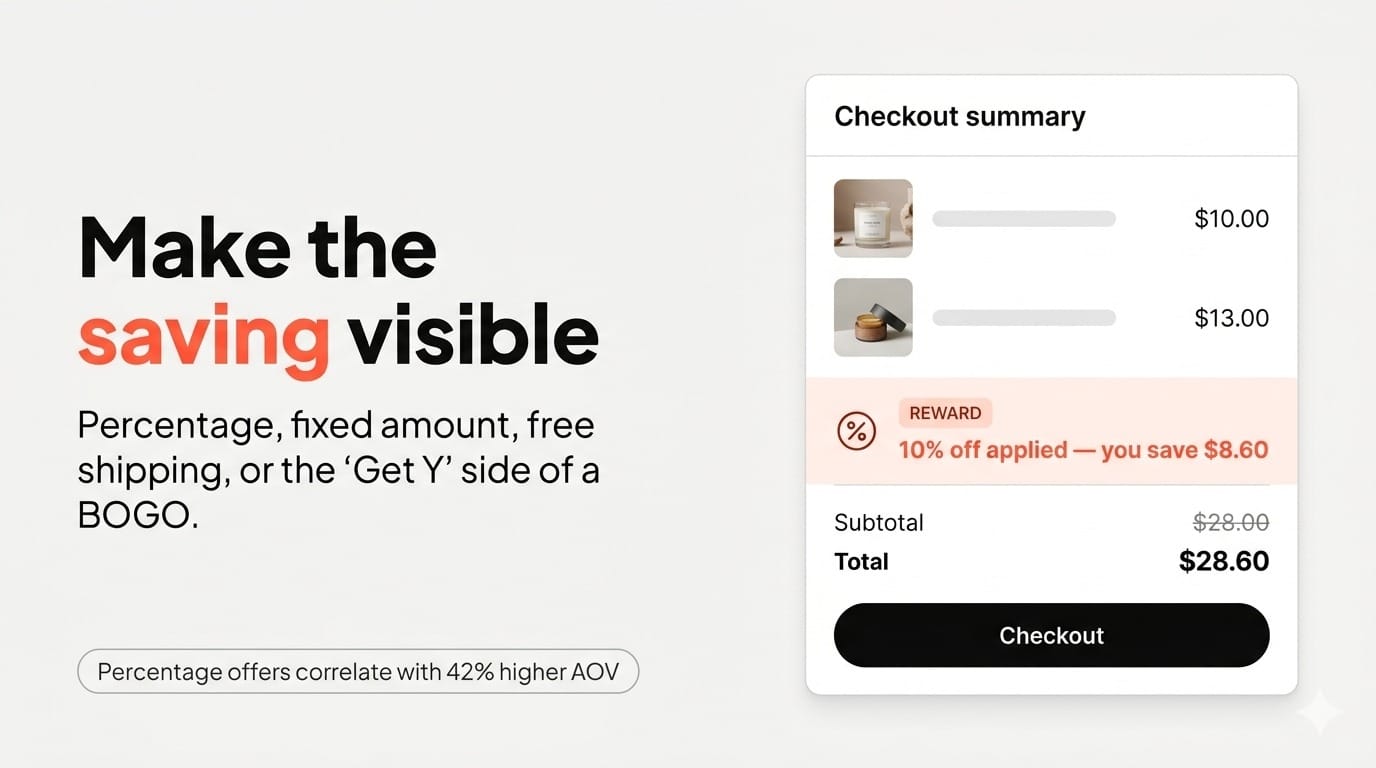
An automatic discount is a discount that applies itself at cart and checkout once a shopper's order meets the conditions you set, no code entry required. You configure the trigger (minimum cart value, minimum quantity, a specific customer segment) and the reward (a percentage off, a fixed amount off, free shipping, or a Buy X Get Y structure), and Shopify handles the rest.
That's the core difference from a discount code: a code needs the shopper to know it exists and type it in correctly. An automatic discount removes that step entirely, which matters more than it sounds. Discount type itself measurably changes order value. Seguno's 2026 Unique Discount Code Benchmark, drawn from 182 million unique discount codes across 1,348 Shopify stores, found percentage-off discounts correlated with an average order value of $95.75, against $67.35 for fixed-amount discounts, a 42% gap (Seguno, 2026). If you're deciding what kind of automatic discount to build first, that gap is worth weighing before you default to a flat dollar amount off.
Shopify supports four native automatic discount types: Amount off products, Amount off order, Buy X Get Y, and Free shipping. Each can be scoped to specific products, collections, or customer segments, and each runs independently of any discount codes you also have active.
How to Set Up an Automatic Discount in Shopify, Step by Step
Every automatic discount is created from the same place in the admin, regardless of which of the four types you're building.
Step 1: Start the discount
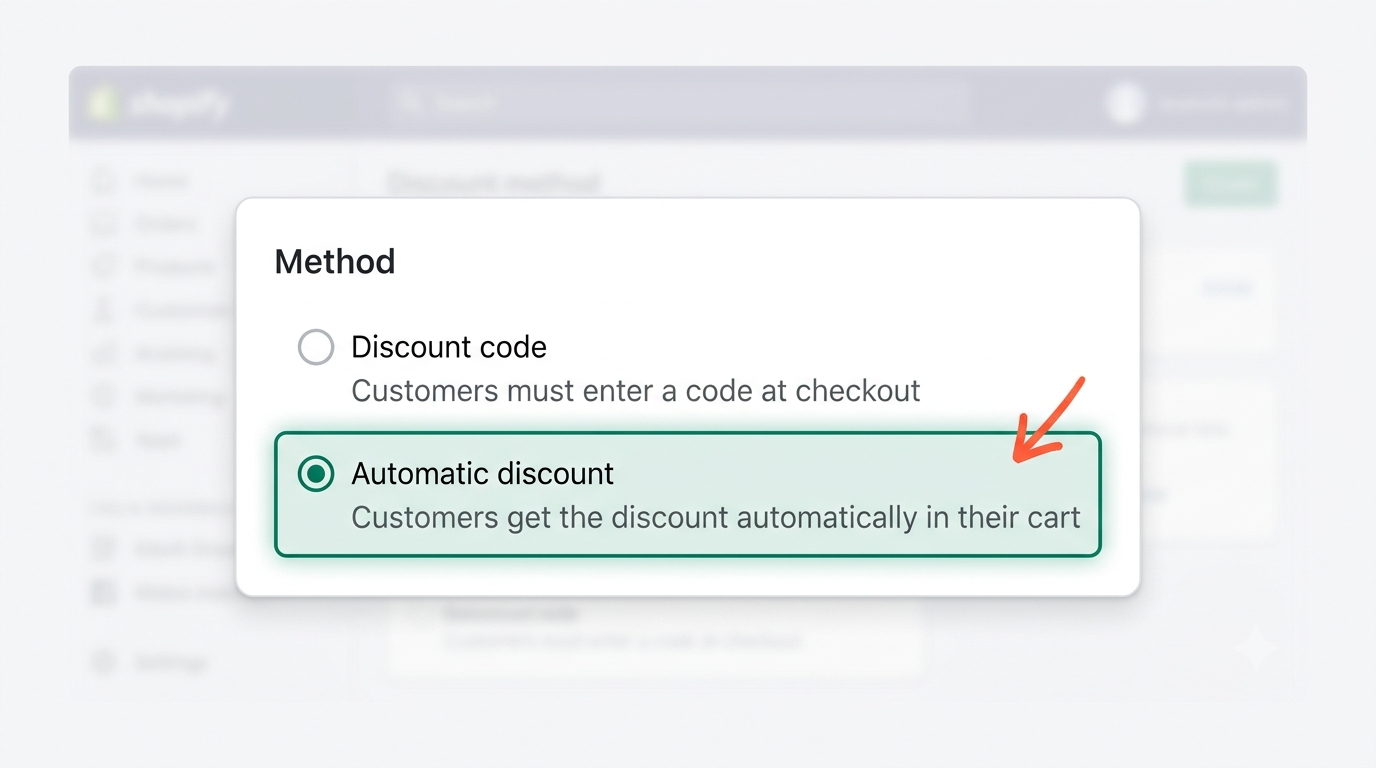
From your Shopify admin, go to Discounts, then Create discount. In the method selector, choose Automatic discount rather than Discount code. Name it something customer-facing and clear, like "Summer Sale 20% Off" — shoppers will see this name on the cart and checkout page next to the discount, so treat it as marketing copy, not an internal label.
Step 2: Choose the discount type
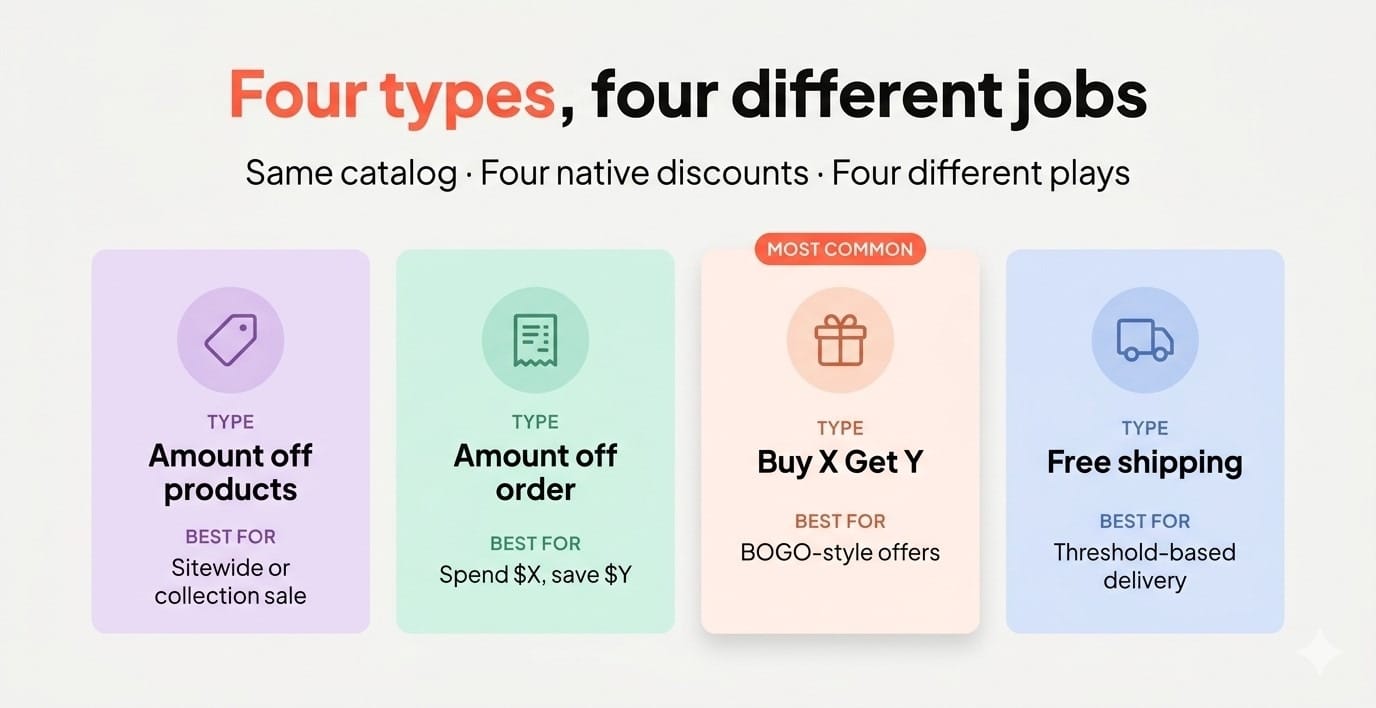
Pick one of the four native types. Amount off products works well for a sitewide or collection-wide sale. Buy X Get Y is the native path to a BOGO-style offer. Amount off order is the closest to a classic "spend $X, save $Y" promotion. Free shipping is self-explanatory but still needs a minimum condition set in the next step, or it applies to every order.
Step 3: Set the qualifying conditions
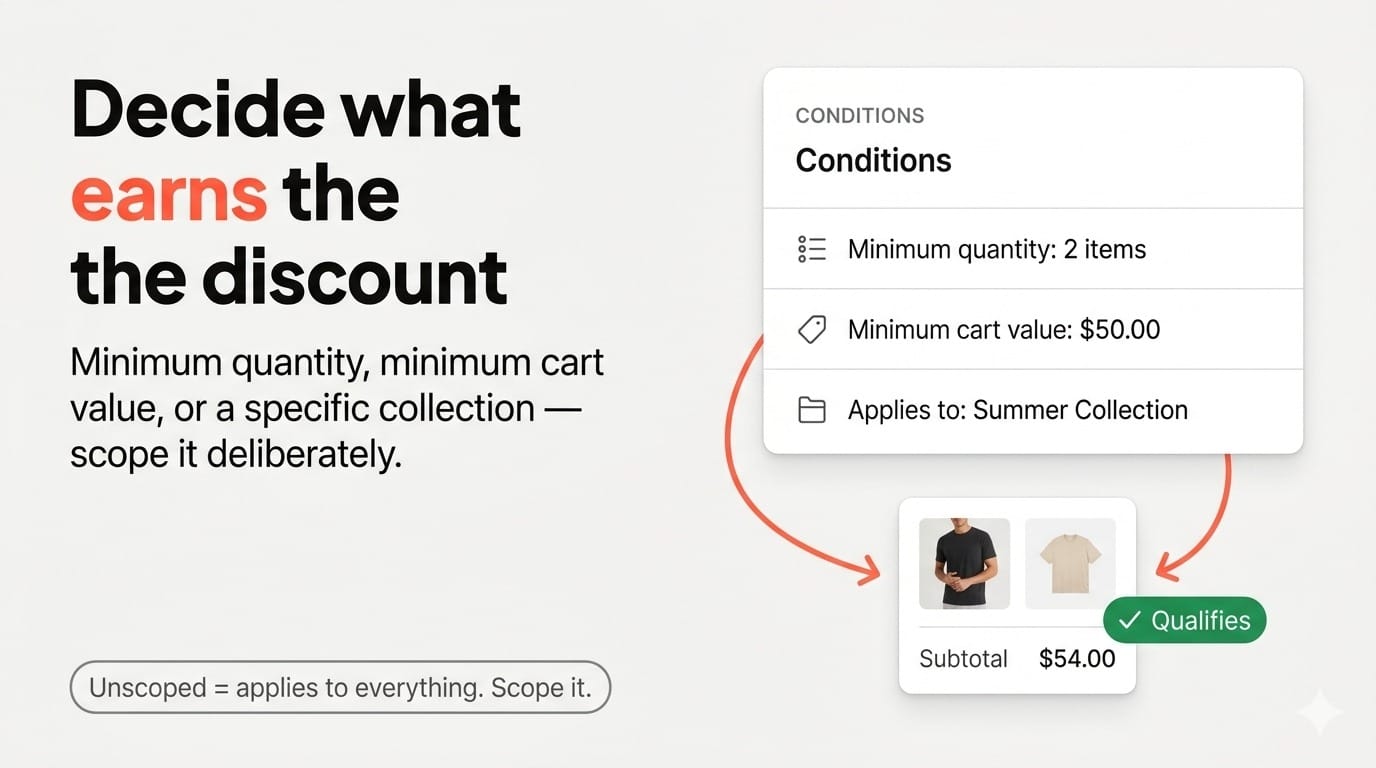
This is where you define what earns the discount: a minimum quantity of items, a minimum cart value, or specific products/collections the discount applies to. Be deliberate about scope here. A discount left unscoped can apply more broadly than intended, especially on a large catalog where "all products" quietly includes items you didn't mean to discount.
Step 4: Define the reward
Set the actual discount, whether that's a percentage, a fixed amount, free shipping, or the "Y" side of a Buy X Get Y rule. For Buy X Get Y specifically, you'll set both the qualifying purchase (Buy X) and the reward item (Get Y), which can be the same product, a different product, or an entire collection
Step 5: Set eligibility and an active window
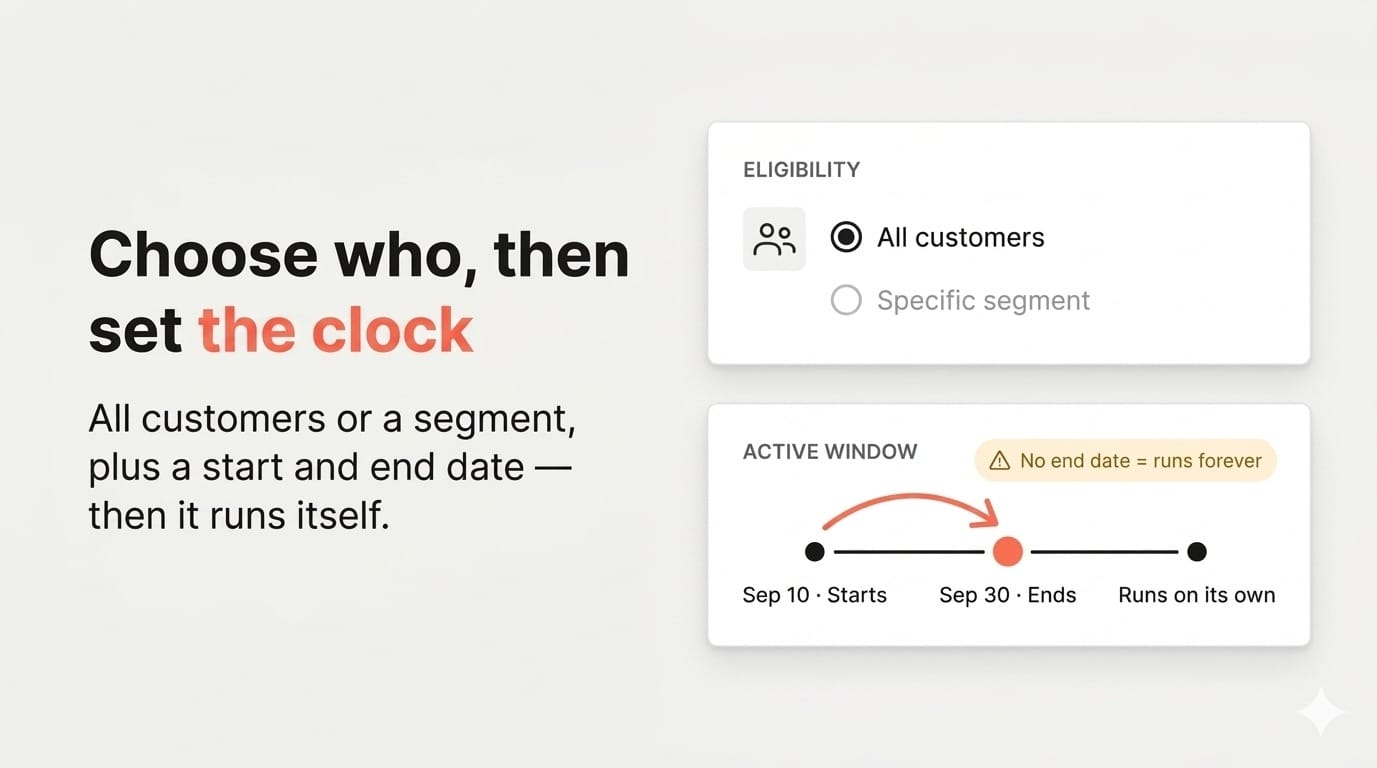
Choose whether the discount applies to all customers, a specific customer segment, or specific POS Pro locations, and set a start date and (optionally) an end date. Leaving the end date open keeps the discount running indefinitely, which is fine for an evergreen offer but worth double-checking before you launch something meant to be temporary.
Once published, the discount runs on its own from that point forward. That's the part that genuinely does "run itself." The part that doesn't is what happens once you have more than one active at a time, which is where most of the confusion starts.
Setting up one automatic discount is straightforward. Running more than one offer type at the same time, without one silently overriding the other, is where the native tool starts to show its limits.
Pumper Bundles' Buy More Save More offer and BOGO Offers each run through their own Automatic Discount mode with a dedicated combination toggle, so a quantity break and a BOGO can be live and visible at once instead of competing for the same checkout slot.
Why Automatic Discounts Don't Always Combine the Way You'd Expect
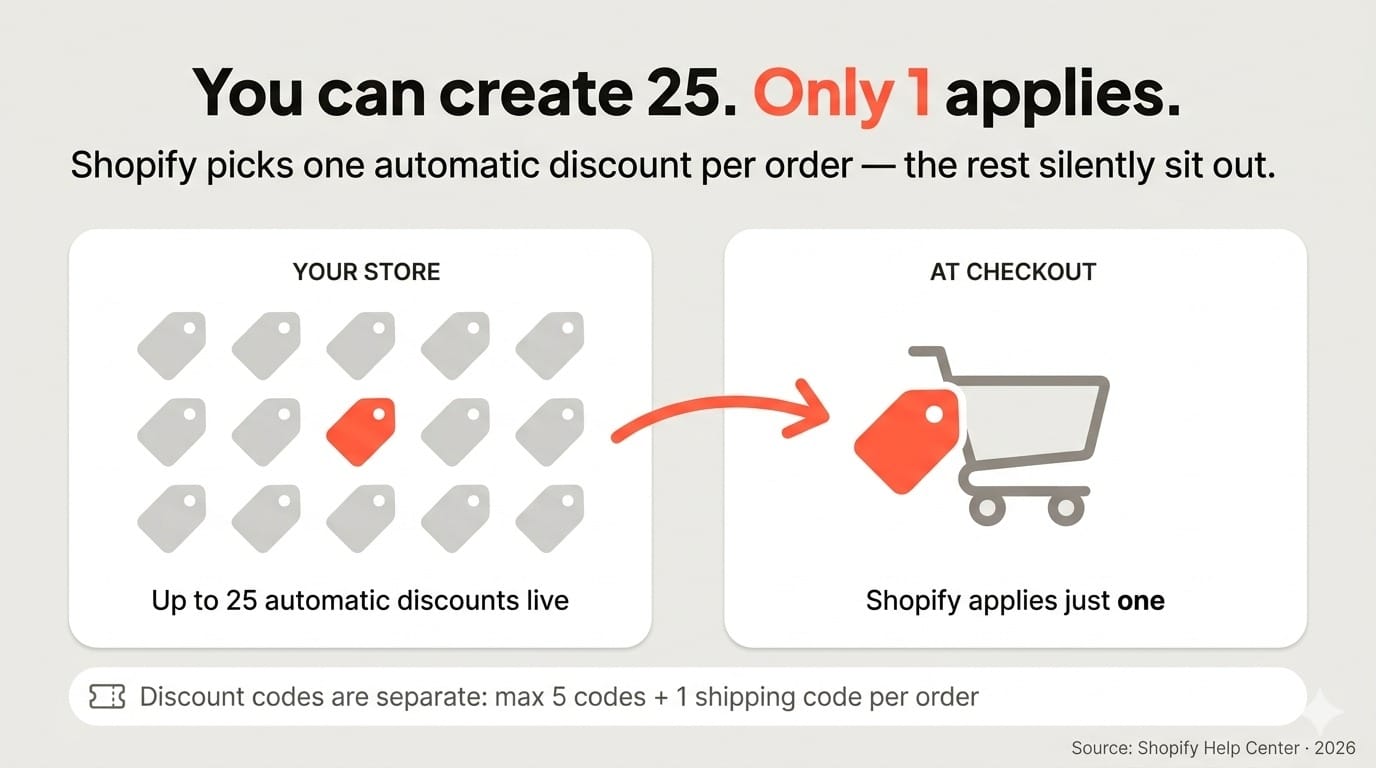
By default, only one automatic discount applies to a given order. If a shopper qualifies for two, Shopify applies whichever combination produces the result it's configured to give, not both stacked on top of each other, unless you've explicitly told it to.
Every discount in Shopify has a Combinations section where you choose whether it can combine with product discounts, order discounts, and shipping discounts, each a separate checkbox. Miss that step and a second discount you expected to layer on top of the first simply won't apply, with no error message explaining why.
[CHART CUE: Horizontal bar chart showing three native discount limits side by side: "25 max active automatic discounts (including app-based)," "1 automatic discount applied per order by default," "5 discount codes + 1 shipping code max per order." Source: Shopify Help Center, Combining Discounts, 2026.]
A few specific caps worth knowing before you build a second or third rule:
- Up to 25 active automatic discounts can exist on a store at once, app-based discounts included, though that's a ceiling on how many can be configured, not how many can apply to one order (Shopify Help Center, 2026).
- Two product discounts can't stack on the same line item. If a shopper's cart qualifies for two separate product-level discounts on the same item, only one applies.
- Discount codes have their own separate cap. A customer can use up to 5 product or order discount codes plus 1 shipping discount code on a single order, per Shopify's own documentation on combining discounts, a limit that runs independently of the automatic discount rules above.
If you've ever had a merchant ask why their BOGO offer stopped showing once a sitewide sale went live, this section is usually the answer. The BOGO didn't break. It lost the combination check to the sale because nobody enabled combining on either discount.
Where Native Automatic Discounts Stop Running Themselves
The setup above genuinely works for a single, standalone promotion. Three specific gaps are what usually push a merchant from "the native tool is fine" to "I need something else," and all three show up as real search queries from people troubleshooting the exact symptom.
No per-customer usage limits
Shopify's native automatic discounts can't be capped to a set number of uses per customer. A discount code can carry a usage limit; an automatic discount can't. If you want to run a "first order only" or "one redemption per customer" automatic offer, the native tool has no setting for it.
No visibility before the cart
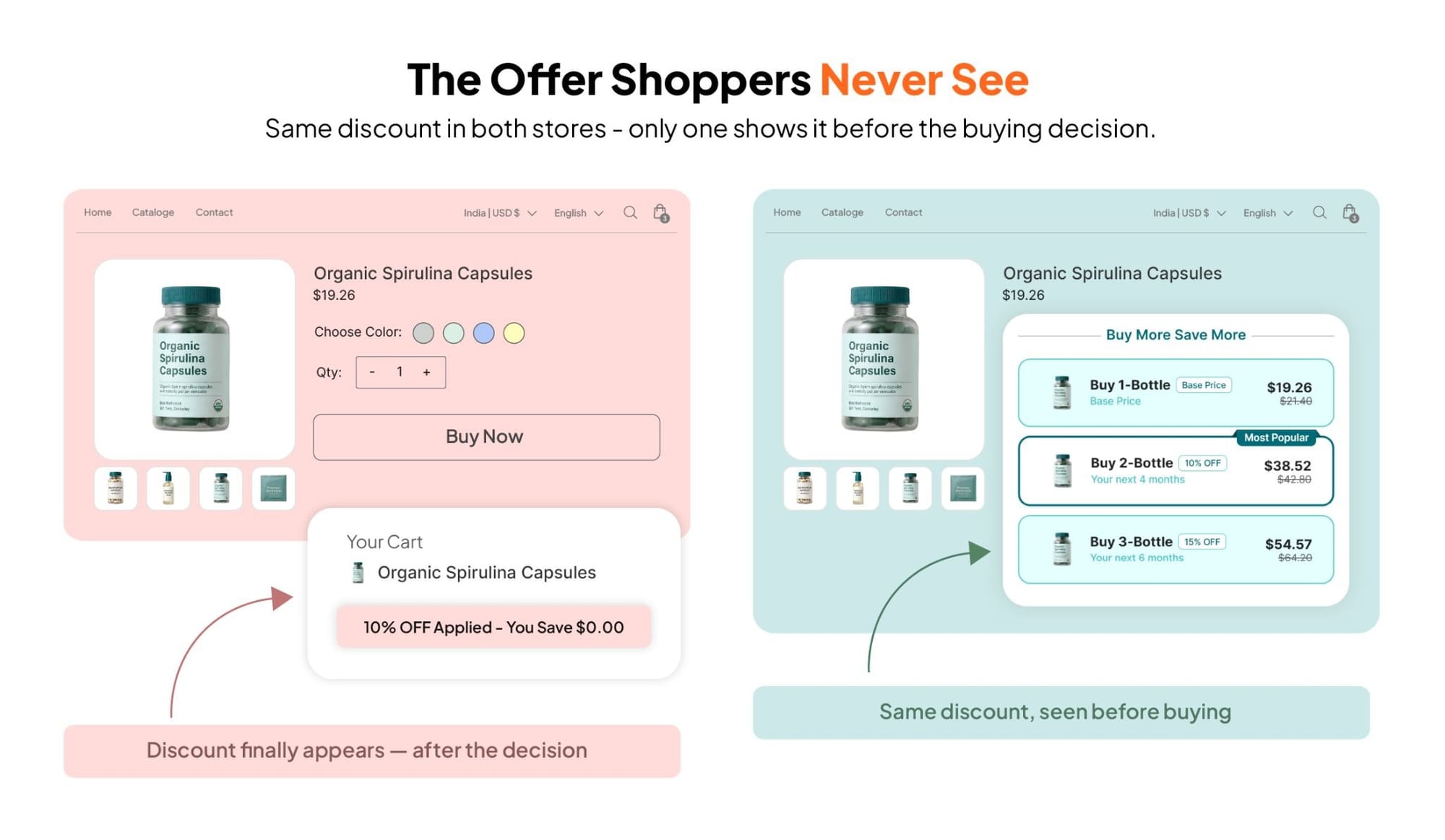
Automatic discounts don't render on the product page. They only become visible once a shopper reaches the cart or checkout, which means the incentive that's supposed to influence the buying decision shows up after the decision has effectively already been made. A shopper deciding between a single unit and a three-pack never sees the savings until they've already added something to their cart.
[IMAGE CUE: Simple side-by-side comparison mockup. Left panel labeled "Native automatic discount" showing a plain product page with no visible offer, then a discount only appearing at the cart icon; right panel labeled "App-rendered offer" showing the same product page with a visible tiered discount widget above the Add to Cart button.]
A one-discount ceiling that blocks layered offers
Because only one automatic discount applies per order by default, running a volume-tier offer and a BOGO offer as two separate live automatic discounts means one of them typically loses, unless combinations are configured correctly on both. For merchants who want to run more than one offer type simultaneously (a quantity break on consumables and a BOGO on apparel, say), this ceiling is the practical wall.
Extending Automatic Discounts With an App: What Actually Changes
An offer app doesn't replace Shopify's discount engine. It sits on top of it and solves the three gaps above directly, rather than working around them.
Pumper Bundles (by Proveway; 20,000+ merchants, 4.9/5 across 3,413 Shopify App Store reviews) runs its own Automatic Discount mode per offer, the recommended setting for most stores, with a separate Discount Code Mode available for referral or influencer campaigns where a code makes more sense. Each Pumper offer has its own Combination Discounts setting, three separate toggles controlling whether it stacks with Shopify's native Product, Order, and Shipping discounts, all on by default. That's a direct answer to the "why didn't my second discount apply" problem: the combination decision is explicit, per offer, instead of buried in a checkbox that's easy to miss.
The other structural difference is placement. Pumper's widgets render via native Shopify Theme App Extensions directly on the product page, above the Add to Cart button, not just at cart and checkout. A shopper sees the volume tier or the BOGO offer while they're still deciding, not after they've already committed to a single unit.
Six offer types run through this same mechanism: Buy More Save More (quantity breaks), BOGO Offers, Unlock Free Gifts, Subscribe & Save, Bundle & Save (mix-and-match), and Post-Purchase Upsell, which fires after checkout rather than before it. Each is published and tracked independently, so a quantity break and a BOGO offer can run at the same time without the one-per-order ceiling forcing a choice between them.
Documented merchant results give a sense of what layering offers this way can do to order value: Australian Standard saw a 65% AOV lift and $7,829 in extra revenue running Pumper's offers; Larix saw a 60% AOV lift worth $8,245 a month; PhoneBazaar saw a 30% AOV lift and $19,938 in extra revenue (Pumper Bundles merchant case studies, 2026).
If both discounts already have combinations enabled and the offer still isn't showing, you've hit Shopify's native combination limits — that's a platform ceiling, not something a different discount type or setting can fix."
Pumper Bundles' Bundle & Save and Unlock Free Gifts offers run on the same per-offer Automatic Discount and Combination Discounts settings described above, so a bundle and a free-gift threshold can both be live without one silently losing to the other. Plans are capped by extra revenue generated rather than feature access, with a Free plan available up to $300 and a 7-day free trial on every paid tier.
Troubleshooting Common Automatic Discount Problems
Most "my automatic discount isn't working" reports trace back to one of a handful of causes, and checking them in order usually finds the issue faster than rebuilding the discount from scratch.
The discount isn't showing at checkout
Check for a conflicting active discount first. If a second automatic discount or a discount code is also eligible for the same order, Shopify may be silently choosing the other one because combinations weren't enabled. Also confirm the order actually meets the minimum condition; a cart just under a spend or quantity threshold won't trigger the discount, and there's no partial-credit state.
The discount isn't combining with another active discount
Open both discounts' Combinations settings and confirm the checkbox for the other discount's type (Product, Order, or Shipping) is enabled on each side. Combining is not automatic just because both discounts are active; it has to be explicitly turned on for the pairing you want.
Buy X Get Y items aren't getting a further discount
This is expected behavior on every plan except Shopify Plus. Products that are part of an active Buy X Get Y discount become ineligible for additional product discounts, which is a deliberate Shopify rule, not a misconfiguration. If a shopper reports the "Get Y" item didn't also apply a separate sale discount, that's the cause.
The discount applied to the wrong items or the wrong price
Recheck the discount's scope (specific products, a collection, or all products) and confirm nothing was added to that collection after the discount was set up. A collection-scoped discount picks up new products automatically, which can produce an unexpected discount on an item added after launch.
A broken discount at checkout carries real cost, not just an annoyance. Littledata's Shopify benchmarks put average checkout completion around 45%, with the top 10% of stores clearing above 66% (Littledata, via industry benchmark coverage, 2026, retrieved 2026). A discount that silently fails to apply is one more reason for a shopper sitting near that decision point to abandon instead of complete.
Automatic Discount vs. Discount Code: Which to Use When
Use an automatic discount for a blanket, always-on incentive: a site-wide sale, a standing quantity break, a free-shipping threshold. There's no friction for the shopper and nothing to forget to enter, which is exactly why it's the recommended default for most standing offers.
Use a discount code when you need to gate or track the offer: an email-capture incentive, an influencer or affiliate code, a promotion meant for one customer segment that isn't cleanly definable by Shopify's native segmentation. A code gives you redemption tracking by source in a way an automatic discount doesn't, since anyone who qualifies for an automatic discount gets it without you knowing which channel sent them.
The most common discount tier merchants reach for during BFCM specifically is 20% off, used by 31% of stores, followed by 30% off (24%), 25% off (18%), and 15% off (12%) (easyappsecom BFCM Statistics coverage, 2026, sourced from Shopify/Seguno merchant data). Whichever depth you land on, the automatic-vs-code decision above is independent of it. It's about how the shopper receives the discount, not how deep it is.
Frequently Asked Questions
How do I set up an automatic discount on Shopify?
Go to Discounts, click Create discount, and choose Automatic discount as the method. Pick a discount type (Amount off products, Amount off order, Buy X Get Y, or Free shipping), set the qualifying conditions, define the reward, and set eligibility and an active date range.
Why isn't my Shopify automatic discount showing at checkout?
Usually a conflicting active discount that hasn't been enabled to combine with it, or an unmet minimum condition. Native automatic discounts also never show before the cart page, which some merchants mistake for a display bug rather than expected behavior.
Can you combine two automatic discounts on Shopify?
Only if you explicitly enable it. Each discount has a Combinations section with separate checkboxes for Product, Order, and Shipping discounts. Without that step, only one automatic discount applies per order by default, with Shopify choosing the best result for the customer.
What's the difference between an automatic discount and a discount code on Shopify?
An automatic discount applies itself once conditions are met, no code required. A discount code needs the shopper to enter it manually, which adds friction but gives you redemption tracking by code or channel that an automatic discount doesn't provide.
How many automatic discounts can I run on Shopify at once?
Up to 25 active automatic discounts total, app-based discounts included. That's a cap on how many can be configured simultaneously, not how many apply to a single order; only one typically applies per order unless combinations are enabled on the relevant discounts, per Shopify's Help Center documentation.
The Short Version
Shopify's native automatic discounts are genuinely hands-off for a single, standalone promotion. Create the rule once, and it runs itself from that point on, no code, no expiry to manually track. The friction shows up once you want more than one offer type live at the same time, a per-customer usage cap, or the discount visible before checkout, none of which the native tool was built to do.
If you've hit that wall, Pumper Bundles' six offer types run through their own Automatic Discount mode with per-offer combination controls, so a quantity break and a BOGO can both stay live and visible from the product page onward. Every paid plan starts with a 7-day free trial, and the Free plan covers stores generating up to $300 in extra revenue before any payment is required.
See how Pumper's offer types are configured on the quantity-breaks use-case page, which walks through the same automatic-discount settings covered in this guide, applied to a live storefront.