



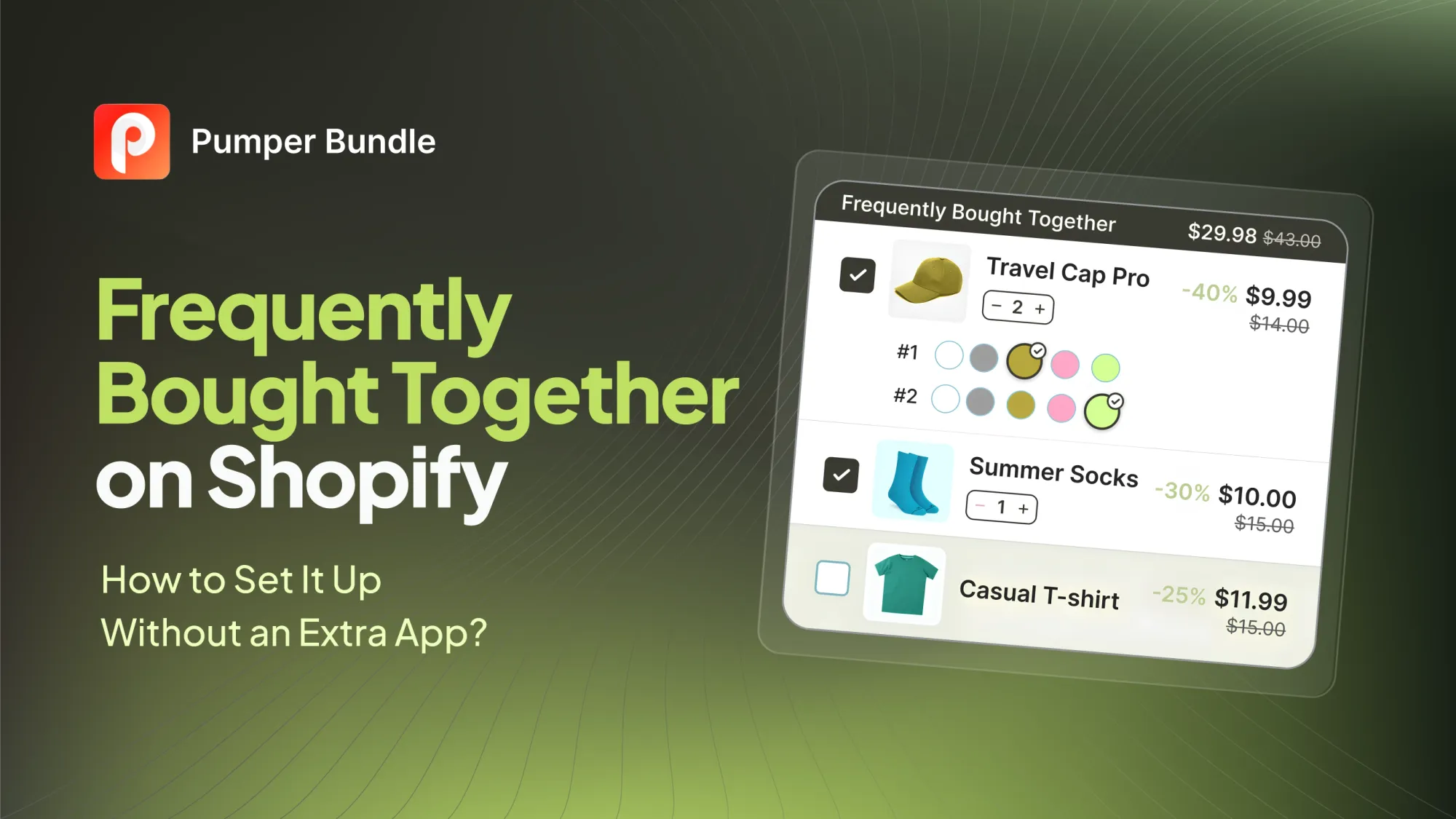
Shoppers on Amazon expect to see it under every product: "Frequently bought together," a small widget bundling the item they're looking at with two or three others people usually buy alongside it. Shopify merchants want the same thing, and most assume it means installing another subscription app. It doesn't have to. Shopify ships with more of this built in than most merchants realize, and the rest can be built with a theme section or two. This guide walks through every method, native theme tools, free Shopify apps, and manual code, so you can decide how far to go before you actually need a paid add-on.
Search interest around this exact question is high for a reason. Merchants who've already installed a bundle app, a review app, an email app, and a loyalty app are understandably reluctant to add a fifth subscription just to show two related products together. The good news is that a meaningful version of frequently bought together doesn't require it. The honest version of this guide also covers where the free and native methods stop being enough, so you're not stuck rebuilding the whole thing later once you realize display alone wasn't the goal.
What "Frequently Bought Together" Means on Shopify
The Amazon-Style Widget Shoppers Already Expect
The core idea is simple. A shopper lands on a product page, and directly below the price or the add-to-cart button, they see a small group of related products with a combined price and a single button to add all of them to the cart. It works because it removes research. The shopper doesn't have to guess what pairs well with the phone case they're buying. The store already knows and shows them.
On Shopify, this pattern shows up under a few different names depending on the theme: "You might also like," "Complete the look," "Pairs well with," or a literal "Frequently bought together" heading. The mechanics are the same regardless of the label.
Why This Is a Cross-Sell, Not an Upsell
It's worth being precise about the term, because merchants often use "upsell" and "cross-sell" interchangeably, and they aren't the same thing. An upsell pushes a shopper toward a more expensive version of the same product, a bigger size, a higher tier. Frequently bought together is a cross-sell. It suggests a different, complementary product entirely: phone case plus screen protector, not phone case plus a pricier phone case.
That distinction matters for how you build it. A cross-sell widget succeeds when the pairing makes obvious sense to the shopper, not when the second product happens to carry a better margin. A skincare brand selling a vitamin C serum benefits more from pairing it with sunscreen, since the two are used together for a reason dermatologists actually explain to customers, than from pairing it with an unrelated, higher-margin moisturizer that doesn't have the same logical connection.
Does Shopify Support Frequently Bought Together Natively?
The Built-In Recommendations Object
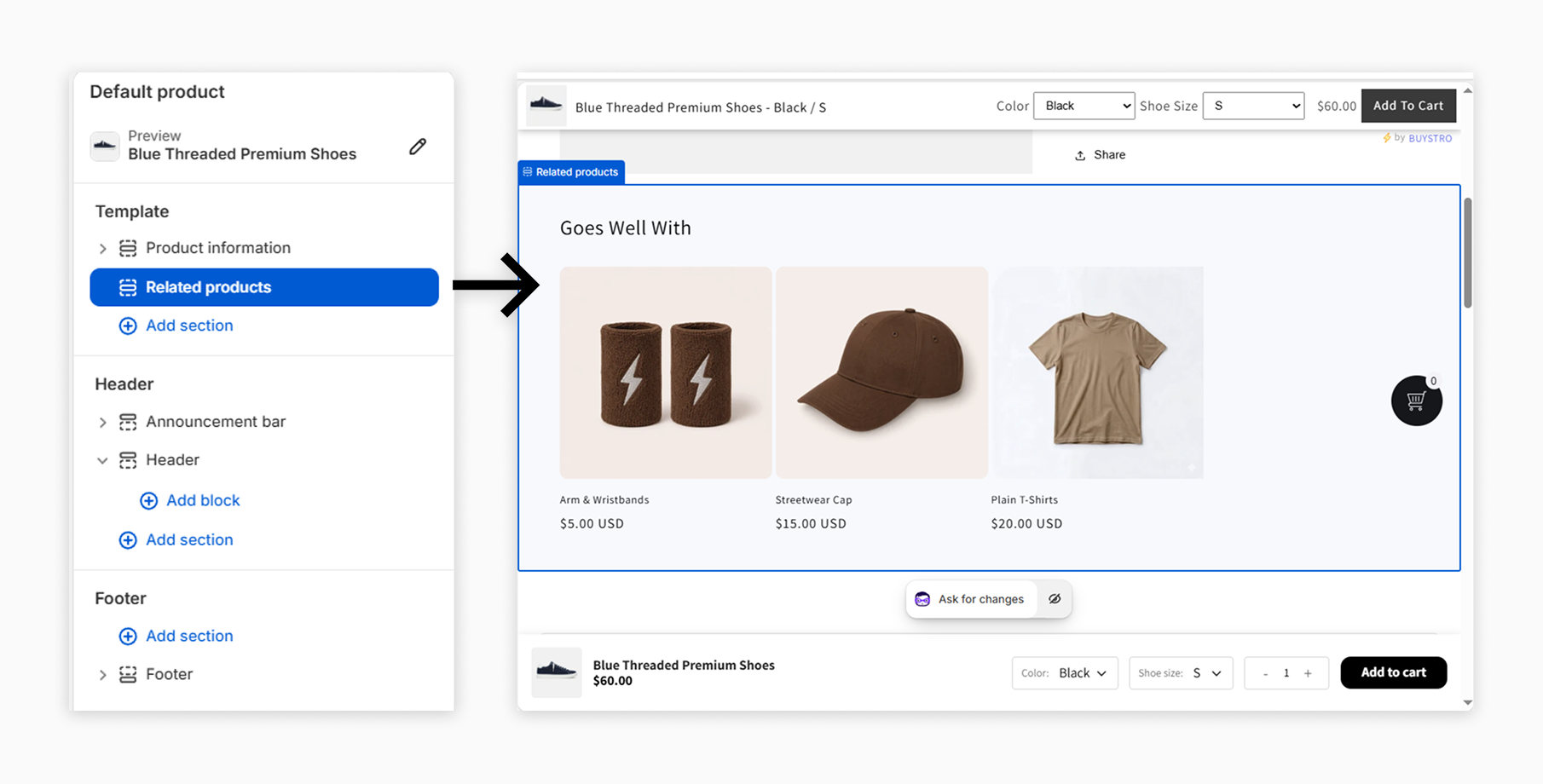
Most Shopify themes built on Online Store 2.0, including Dawn, already include a related products section. It's powered by a Liquid object called recommendations.products (The Built-In Recommendations Object), which Shopify's own algorithm populates using purchase history, product description similarity, and shared collections. No app installation is required for this to function. It's part of the Shopify platform itself.
What Counts as "Without an Extra App"
For this guide, "without an extra app" means without adding a new line item to your app bill, specifically a dedicated third-party frequently-bought-together or bundle app. It doesn't exclude Shopify's own free, first-party tools. Shopify's Search & Discovery app falls into that category: it's built and maintained by Shopify, costs nothing, and doesn't compete with your existing app stack the way a paid bundle app would. Every method below either uses what's already in your theme or a free Shopify-native tool.
Method 1: Turn On Shopify's Built-In Product Recommendations
Checking If Your Theme Already Has It
Go to your online store editor, open a product page, and look for a "Product recommendations" section in the sidebar. If your theme was published after 2021, it's almost certainly already there, just possibly not enabled or positioned where you'd want it. Toggle it on and preview the page.
Adding the Recommendations Section on Older Themes
If your theme predates Online Store 2.0, you may need to add the section manually through the theme code editor, referencing Shopify's product-recommendations liquid (Adding the Recommendations Section on Older Themes) template documentation. This involves adding a small snippet to your product template that calls the recommendations. products object and loops through the results. It's a one-time edit, not an ongoing maintenance task.
What the Algorithm Uses to Pick Products
Shopify's recommendation engine leans on three signals, in order of priority as your store gathers data: actual purchase history (what customers bought in the same order), product description similarity, and shared collections. New stores without much order history default to the collection-based logic until enough sales data accumulates for purchase-based recommendations to take over.
Method 2: Use the Free Search & Discovery App to Hand-Pick Pairings
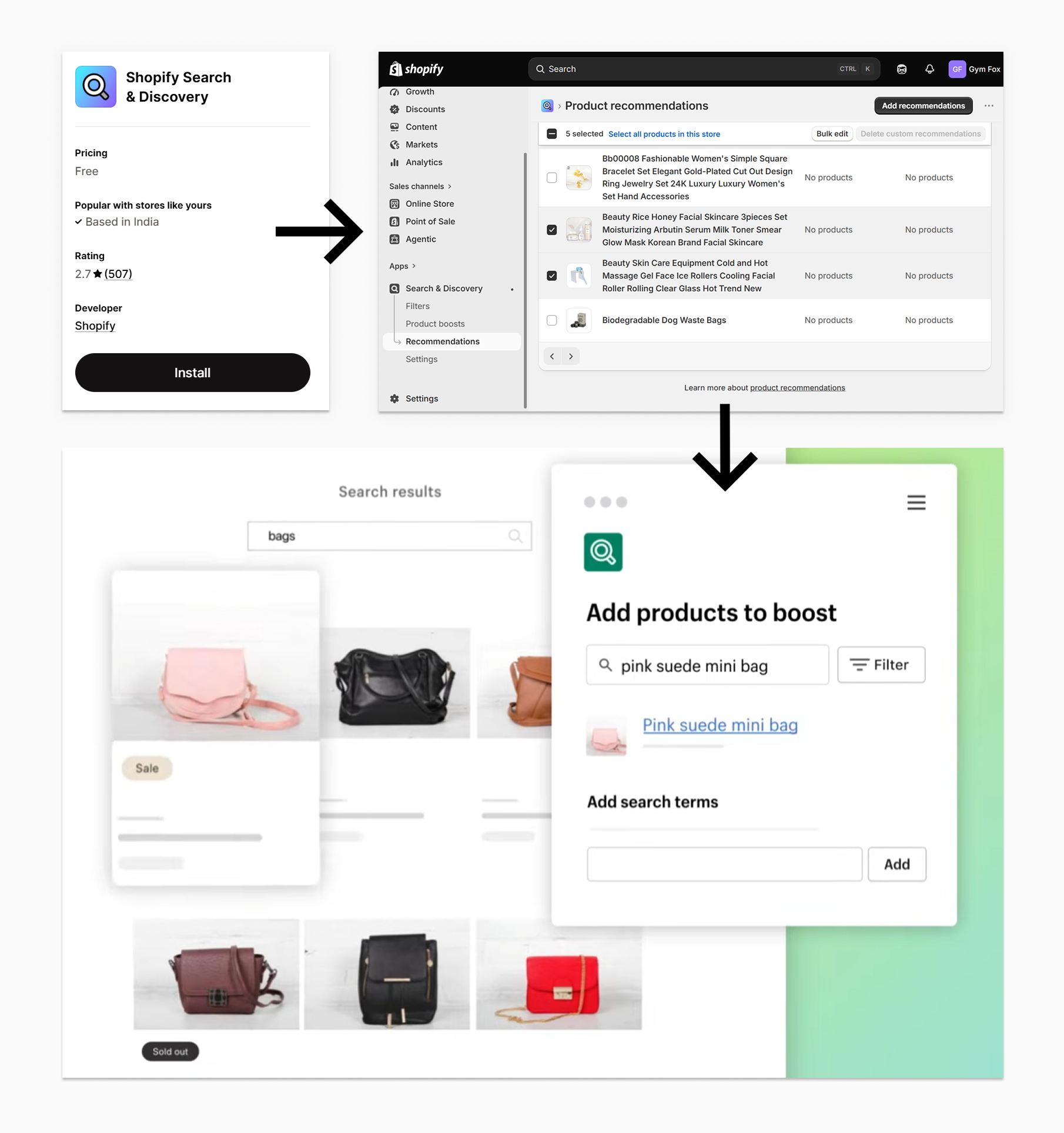
Installing and Setting Up Complementary Recommendations
Shopify's Search & Discovery app adds a manual layer on top of the automatic recommendations. Once installed, it gives you a "Recommendations" module where you can hand-select which products appear next to a specific item, overriding the algorithm's guess with your own merchandising judgment.
Overriding the Algorithm Product by Product
This is the closest thing to a true "frequently bought together" curation tool without leaving Shopify's own ecosystem. If you know that your best-selling candle sells well with a specific wick trimmer, you can pin that pairing directly instead of hoping the algorithm figures it out from order data.
Where This Still Falls Short of True FBT
Search & Discovery displays products. It doesn't create a bundled price, doesn't add a single combined "add both to cart" button, and doesn't track how many shoppers actually bought the pairing versus just viewed it. It's a recommendation tool, not an offer. Think of it as picking the right products to show, with none of the mechanics that turn a suggestion into a transaction.
Method 3: Build Manual Pairings With Collections
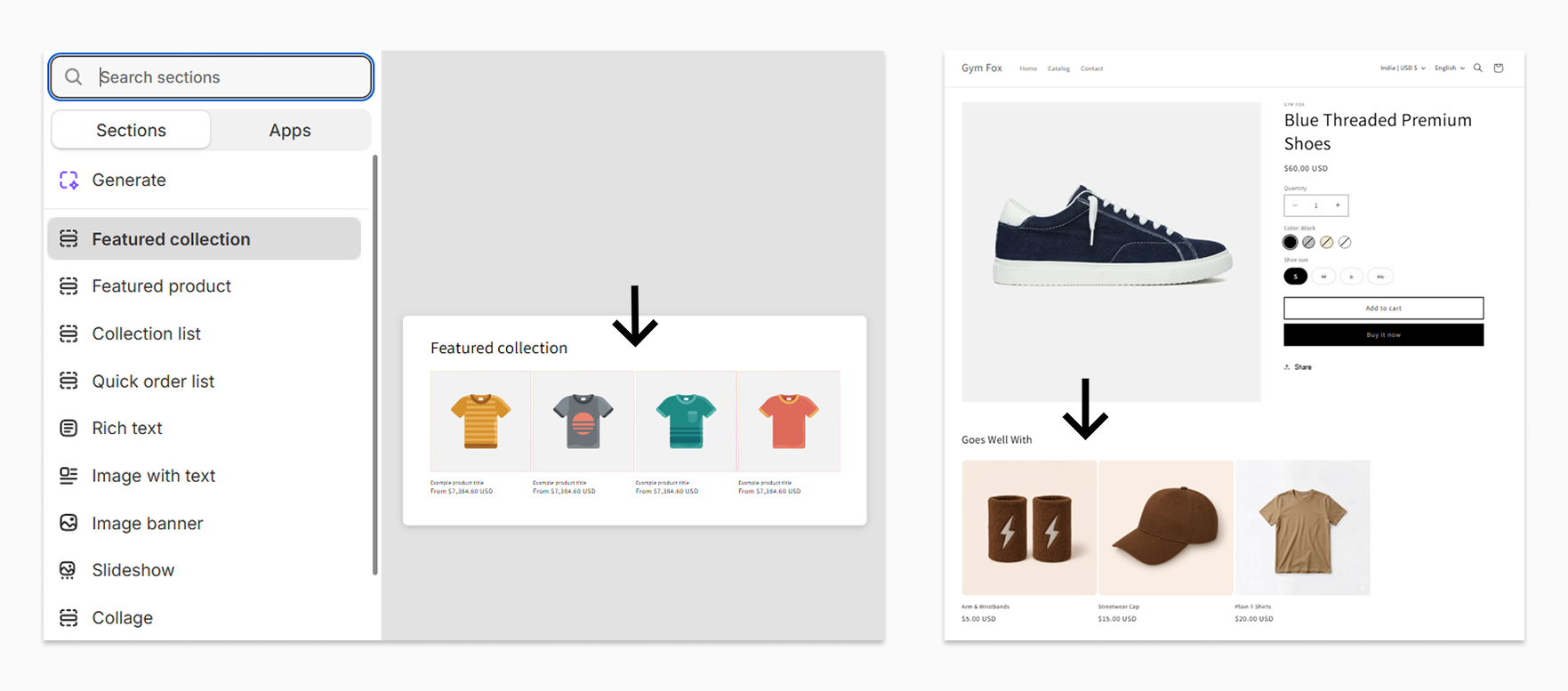
Creating a "Goes Well With" Collection Per Product
For stores with a small catalog, a manual workaround is to create a dedicated collection for each hero product, containing the two or three items that pair with it. A candle's "goes well with" collection might hold a matching diffuser and a lighter. A coffee brand might build one for each roast, containing a filter pack and a matching mug, so the pairing collection changes based on which product page the shopper is actually viewing.
Displaying the Collection Using a Theme Section
Most themes let you add a "featured collection" section to a specific product template and point it at that collection. This gets you a visual "frequently bought together" style row without touching code, as long as your theme supports per-product section templates.
Why This Doesn't Scale Past a Few Dozen SKUs
The problem shows up fast once your catalog grows. Every new product needs its own collection, and every existing collection needs revisiting as products go out of stock or new ones launch. Past 30 or 40 SKUs, this becomes a spreadsheet-level maintenance job that most merchants stop keeping current within a few months.
Method 4: Use Product Metafields for Curated Pairings
Setting Up a Product Reference Metafield
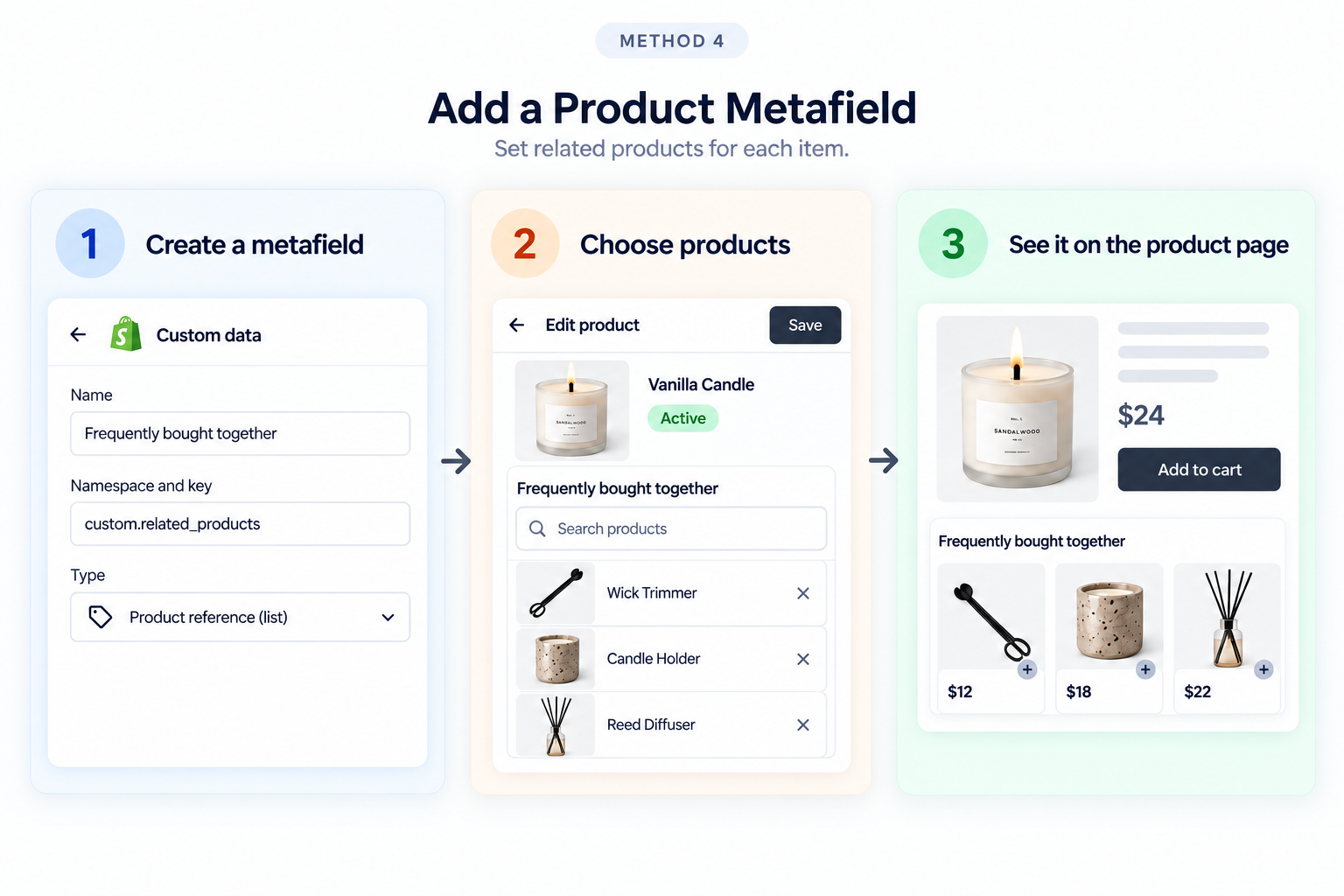
A cleaner version of the collection method uses a product-reference metafield. Under Settings > Custom Data > Products, you create a metafield of type "Product reference" (allowing a list), and name it something like "Frequently bought together." On each product's edit page, you then pick the specific products that belong in its pairing.
This avoids the collection sprawl problem because you're not managing a separate collection object for every product. You're adding a single field to the product itself, which lives right there in the same admin screen where you'd already be editing price, inventory, or description. For a merchant managing 200 SKUs, that's the difference between a task that fits into an afternoon and one that turns into a standing project.
Pulling the Metafield Into Your Product Template
With the metafield in place, a short Liquid snippet in your product template loops through the referenced products and renders them in a custom section, using the exact same card markup your theme already uses elsewhere for consistency.
Combining Metafields With the Native Recommendations Block
Metafields and Shopify's automatic recommendations aren't mutually exclusive. A common pattern is to show the metafield-curated pairing first, then fall back to the automatic recommendations.products (Combining Metafields With the Native Recommendations Block) object if the metafield is empty for a given product. This keeps every product page populated without requiring you to manually curate the entire catalog on day one.
Method 5: Hand-Code a Custom Frequently Bought Together Section
Structuring the Liquid Snippet
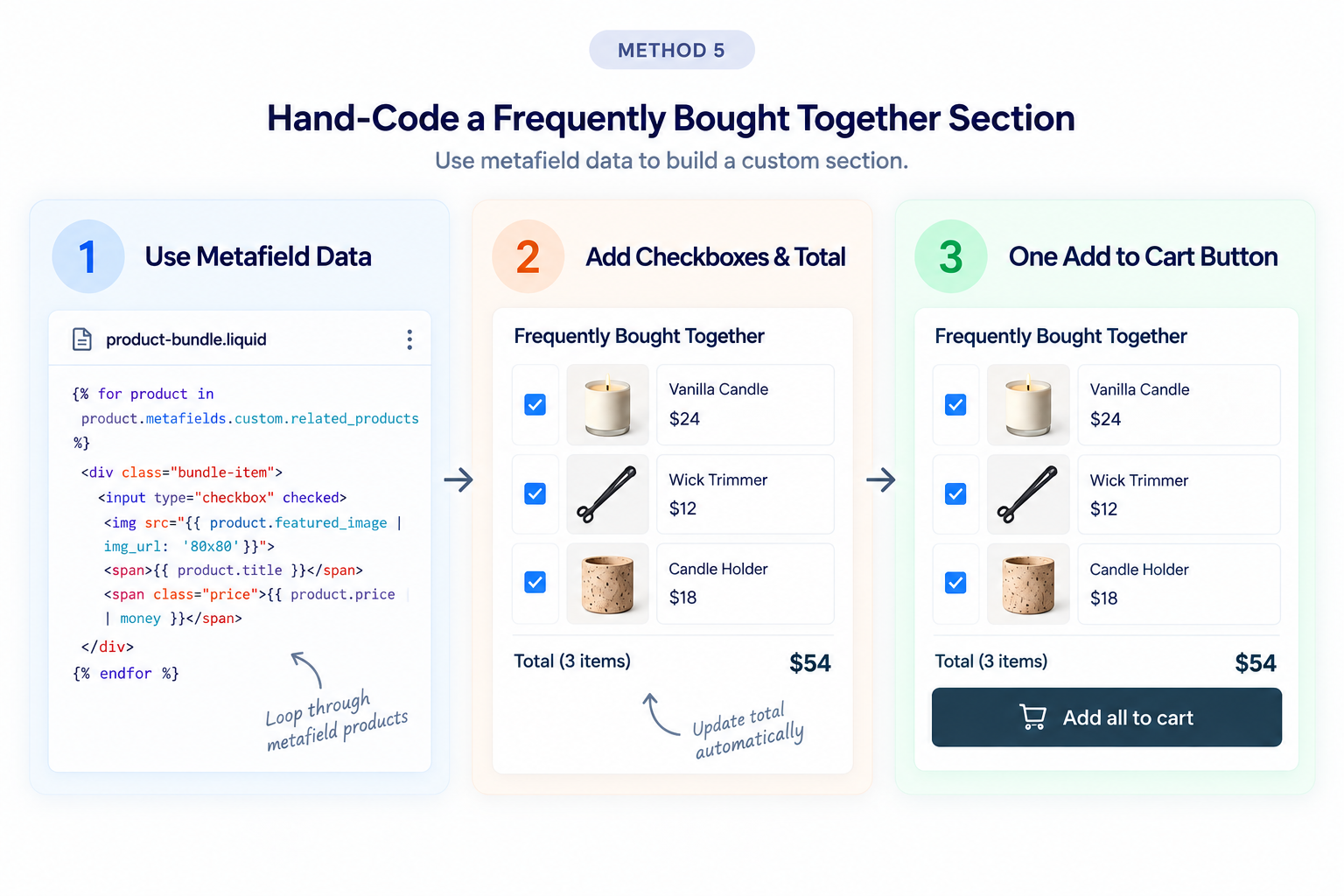
For merchants who want the full Amazon-style layout, checkboxes next to each product, a running combined total, and one "add all to cart" button, the metafield data from Method 4 becomes the input for a custom snippet. The snippet renders each product with a checkbox, defaulting all boxes to checked, and uses a small amount of JavaScript to recalculate the total as items are unchecked.
Calculating a Combined Price
The combined price is just the sum of each variant's price at render time, since Shopify's Liquid doesn't apply cart-level logic until checkout. If you want the total to reflect a discount rather than a straight sum, that math has to happen either in the JavaScript layer or through a Shopify Function, both of which move well past a simple display snippet.
The Maintenance Trade-Off
This is the most flexible no-app method and also the most fragile. Every theme update carries a risk of breaking the custom snippet if it touches shared files. Every store that goes this route ends up needing a developer on standby for theme upgrades, which is the real cost of avoiding an app subscription.
What All These No-App Methods Have in Common
Display Only, No Built-In Incentive
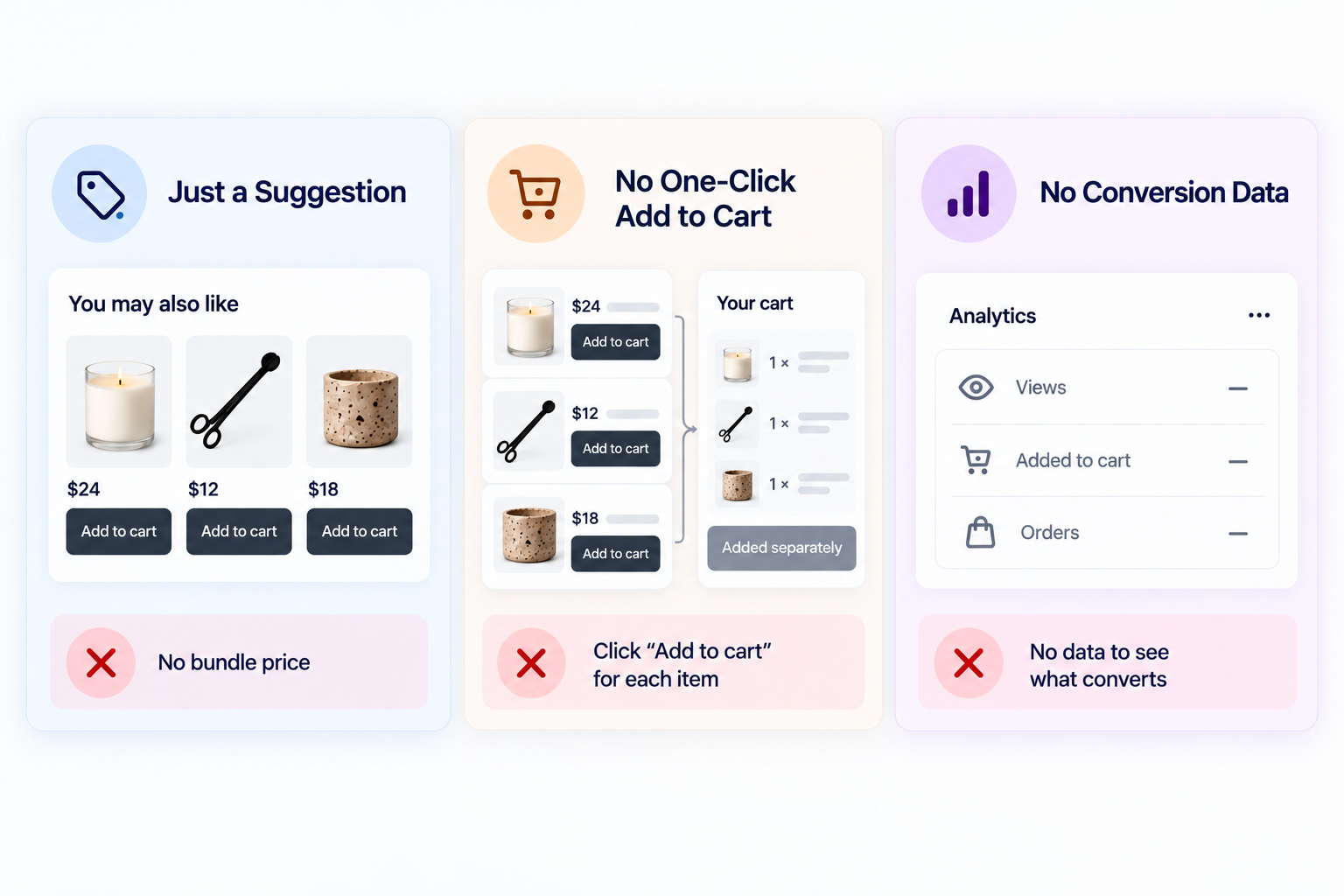
Every method above solves the same half of the problem: showing the shopper a relevant pairing. None of them attach an actual discount to buying the set. Amazon's version of this widget usually isn't discounted either, but Shopify merchants who want to actually move the average order value, not just suggest a pairing, usually want an incentive attached.
No Combined Add-to-Cart in One Click
Native recommendations and the collection method both require the shopper to click into each product individually. Only the hand-coded snippet in Method 5 gets close to a true one-click combined add-to-cart, and it takes real development work to get there.
No Analytics on What's Actually Converting
None of the native or manual methods tell you how many shoppers saw a pairing, how many added it to their cart, and how many of those actually completed the order. Without that data, you're guessing at which pairings are worth keeping and which aren't earning their spot on the page.
A pairing you can't measure is just a guess wearing a widget. Pumper Bundles is where you see what's actually converting.
7-day free trial · No code required · Free plan
Common Mistakes When Building Frequently Bought Together Without an App
Pairing Products for Margin Instead of Relevance
The fastest way to kill a frequently-bought-together widget's performance is to fill it with whatever has the best margin instead of what a shopper would actually want next to their purchase. Shoppers notice when a pairing feels like an ad rather than a suggestion, and a widget that gets ignored a few times trains people to stop looking at it altogether. Relevance has to come first. Margin can inform which relevant pairing you promote, but it shouldn't decide the pairing itself.
Forgetting to Exclude Out-of-Stock or Discontinued Items
Manual methods, collections, and metafields especially, don't automatically remove a product once it sells out or gets discontinued. Shopify's native recommendations. Products (Forgetting to Exclude Out-of-Stock or Discontinued Items) object handles this for you, but any hand-curated list needs a recurring check, or shoppers end up clicking through to a dead product page. This is one of the more common reasons a manually built widget quietly stops converting without anyone noticing why.
Treating the Widget as Set-and-Forget
A pairing that made sense when you had 20 SKUs might not make sense once you've added 40 more. New products launch, seasonal items rotate out, and best-sellers change. Manual frequently-bought-together setups need a quarterly review at minimum, ideally tied to whenever you review sales data, so pairings stay current with what's actually selling rather than what someone picked six months ago.
Turning Display Into an Offer
The moment you want to attach a discount to a frequently-bought-together pairing, something like "buy this candle with the diffuser and save 15%", you've moved from a display feature into an actual offer, complete with its own discount logic, its own widget, and its own tracking. That's a meaningfully different build than a Liquid snippet, and it's the point where most merchants start evaluating a dedicated tool instead of extending the custom code further.
A No-Code Way to Add the Discount
This is where an app like Pumper Bundles becomes relevant, not as a replacement for the methods above, but as the next step once display alone isn't enough. Pumper's BOGO offer type supports cross-product pairings with a real discount attached, and its Bundle & Save offer type handles multi-product pairings the same way a hand-coded frequently-bought-together section would, minus the custom development. Both are delivered through Shopify Theme App Extensions, so the widget goes live from the theme editor rather than a code deploy, and both come with per-offer analytics that show impressions, add-to-cart rate, and actual orders. If you've already built a manual pairing using metafields or collections, the offer types map onto that same merchandising logic. You're just adding a price incentive and a tracking layer on top of pairings you've already identified.
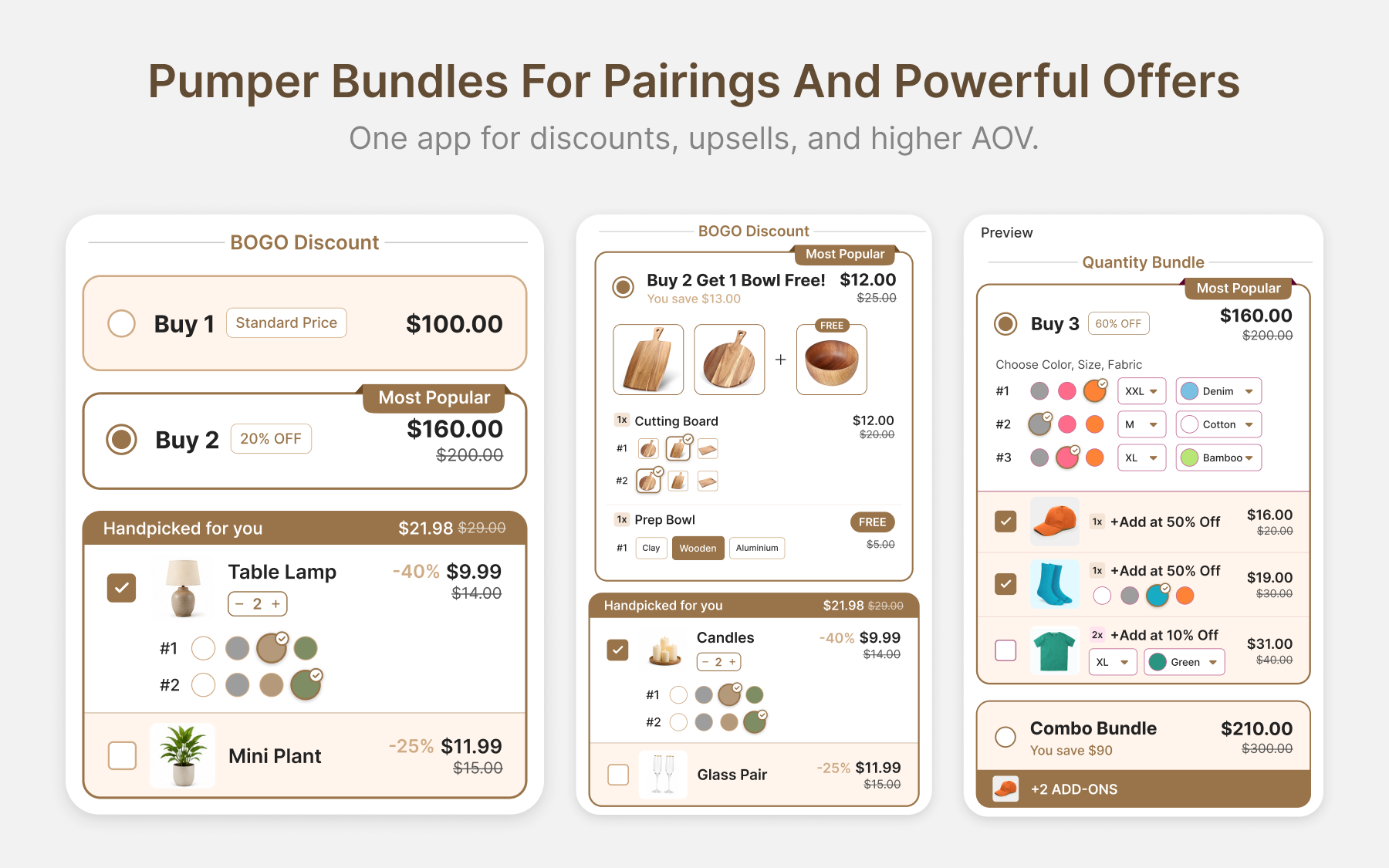
Display shows the pairing. Pumper Bundles is what turns it into a discount, no code required.
7-day free trial · No code required · Free plan
Choosing the Right Setup for Your Store
Under 50 SKUs and Just Starting Out
Start with Method 1. Turn on your theme's built-in recommendations, let the algorithm run for a few weeks once you have order history, and don't build anything custom until you know which pairings actually matter.
Established Store With Purchase History
Layer in Search & Discovery to hand-pick complementary products where the algorithm gets it wrong, or use a metafield to curate pairings for your highest-traffic products specifically. This is usually enough for stores that just want the pairing visible, not incentivized.
Ready to Attach a Discount to the Pairing
If you've validated which pairings convert and want to add a discount to push them further, that's the point where a dedicated offer type, rather than more custom Liquid, is worth the setup time. It's also the point where analytics start mattering more than display logic.
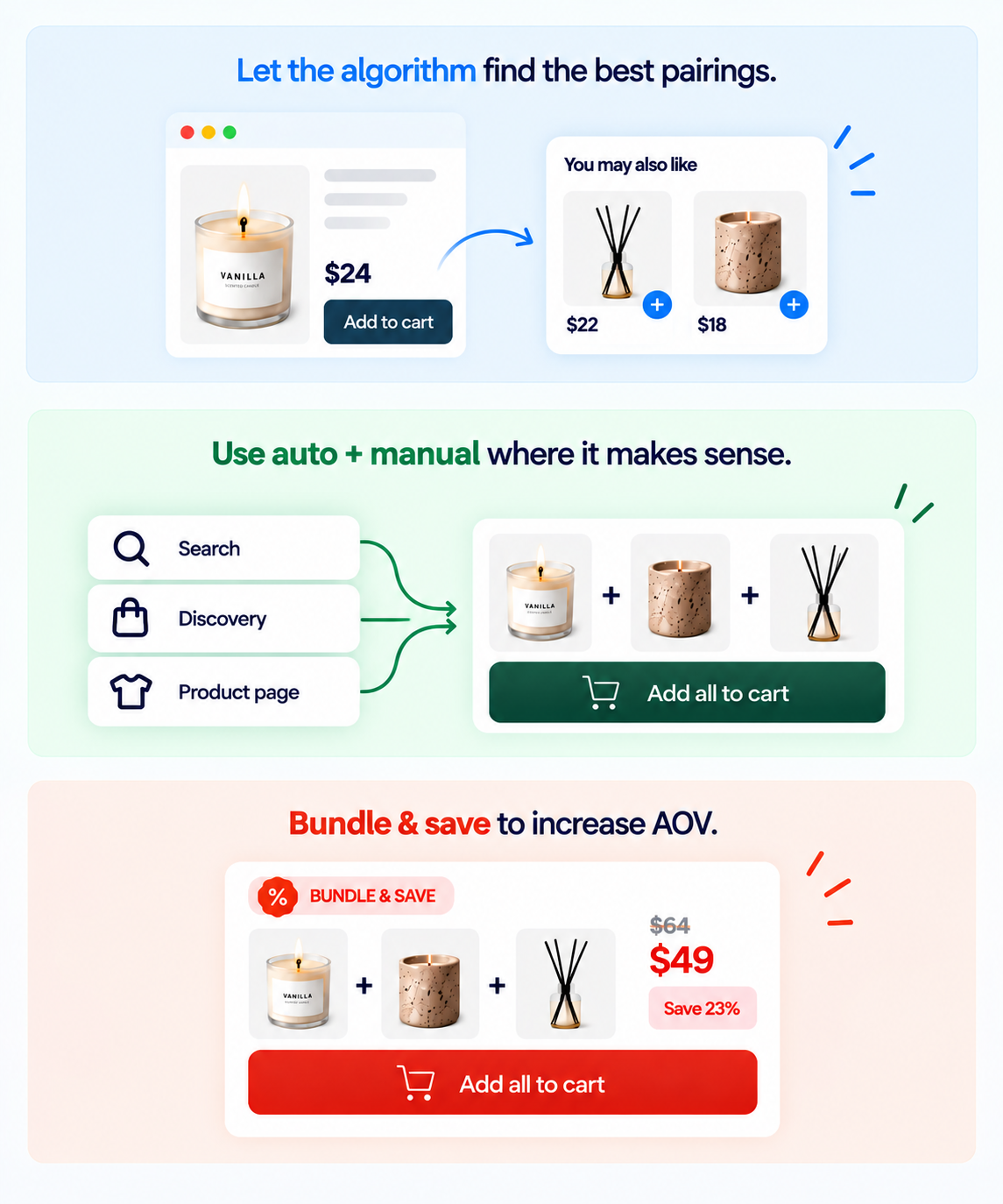
You already know the pairing that works. Pumper Bundles is where you put a price on it.
7-day free trial · No code required · Free plan
Getting Started
Shopify gives you more frequently-bought-together infrastructure out of the box than most merchants use. Start with the native recommendations block, layer in manual curation through Search & Discovery or a metafield once you understand your catalog, and only reach for a dedicated app when you're ready to turn a relevant pairing into an actual discounted offer with the tracking to prove it's working.
Frequently bought together is the display. Pumper Bundles is the offer.
7-day free trial · No code required · Free plan
FAQ: Frequently Bought Together on Shopify
Does Shopify have a frequently bought together feature built in?
Shopify includes a native product recommendations object in most modern themes, which functions similarly to a frequently-bought-together widget. It doesn't include a combined discount or a single add-to-cart button by default, but it displays relevant products without any app installation.
Is the Search & Discovery app the same as a frequently bought together app?
Not exactly. Search & Discovery lets you manually curate which products appear as recommendations, which gets you closer to true FBT curation, but it still doesn't add a discount or a combined checkout action. It's a free, Shopify-built tool rather than a dedicated bundle app.
Can I add a discount to a frequently bought together pairing without an app?
Technically yes, using a Shopify Function or custom checkout code, but this requires development resources well beyond a Liquid snippet. Most merchants find it faster to use a dedicated offer type built for cross-product discounts once they want the incentive attached.
How many products should appear in a frequently bought together widget?
Two to three is the standard. More than that, and the widget starts competing with the primary product for attention instead of supporting the purchase decision.
Does frequently bought together actually increase average order value?
Yes, when the pairings are genuinely relevant. A widget built around a weak or unrelated pairing tends to get ignored, while a widget suggesting an obvious companion product, like a phone case with a screen protector, converts because it removes a decision the shopper would have made anyway, just on a different page or a different day.
Do I need a developer to set up any of these methods?
Method 1 and Method 2 need no development at all, just settings inside your theme editor and the Search & Discovery app. Method 3 uses collections and a theme section, with no code needed. Method 4 requires creating a metafield, which any merchant can do through Shopify admin, though pulling it into the theme template usually needs someone comfortable with basic Liquid.